Whatever message this page gives is out now! Go check it out!


Adobe ColdFusion Licensing and Activation
Last update:
Jun 9, 2026
Product activation
Product activation is an anonymous, secure process that verifies the legitimacy of your product serial number as well as deters the unlicensed use of Adobe ColdFusion. The process verifies that your product's serial number is legitimate. Your machine must be online and connected to the Internet for activation to complete.
Product activation is a series of simple steps that takes place after the installation of Adobe ColdFusion. Users enter their serial number, which is authenticated by the Adobe product activation technology to activate the product. The entire activation process is quick and easy.
You must begin the activation of your product by entering in a valid serial number within 30 days after you first launch it.
You can buy a serial number to activate your software from our online store at Adobe.com or contact the sales team at adobecoldfusion@adobe.com .
You can activate your product 24 hours a day, seven days a week over the Internet. It takes only a few minutes to complete. Internet product activation requires you to type in your serial number.
We use the information only to verify that your product is used within the scope allowed by its End User License Agreement (EULA). The information is stored in a database and used only for product activation data. If you register your product, none of the activation information will ever be linked to your personal customer information.
Activation is a one-time process. You need to be online to complete the activation process. You do not need to be online to run your software.
The activation process requires you to type in the product serial number only. No personally identifiable information is required.
No. Product activation is a simple, one-time process. Most users activate ColdFusion as soon as they install it, and never worry about it again.
Deactivate ColdFusion from your old Server and reinstall and activate it on your new Server.
You have a 30-day trial period before you need to begin the activation of your ColdFusion Server by entering in your serial number. If your computer is temporarily offline, you can still input your serial number and your software will run. Activate your server the next time you are online and you launch your product from the Admin Panel. Once the product is activated, you do not need to be connected to the Internet to use the product.
Online activation
Overview
In ColdFusion, after installation, you must activate ColdFusion first before using it. You must be online to activate ColdFusion. Ensure that you have a active internet connection and the firewalls and proxies in your network must allow access to certain URLs.
We recommend using the online mode of activation, but if you cannot connect to your machine due to some reason, you can activate ColdFusion by using the offline mode, explained in the next section.
Procedure
In the ColdFusion Administrator, go to Licensing and Activation .
The Licensing and Activation page allows you to manage your ColdFusion licenses and track usage of the instances.
When you land on this page, you can see the following details:
Server Edition: Evaluation (30-day trial), Developer, Standard, or Enterprise.
Device ID: The ID of the host machine where ColdFusion is installed.
Activation Status: Displays whether ColdFusion is activated successfully or not. For Developer or Evaluation (trial) editions, the Activation Status displays as Not Applicable .
Deployment Type:
- Production: Must only be licensed for commercial use. License is based on deployment per core.
- Development: Licensed only for internal development and testing.
- Staging: Licensed only for testing and reviewing one or multiple versions of applications before deployment.
- Testing: Licensed only for testing and development purposes and not for staging or live.
- Disaster Recovery: Licensed only for usage during interruption of business critical services.
For more information, see the End User License Agreement .
License Key: Enter the serial key depending on the following:
New installation
- Enter a new serial number.
Upgrade
- You are upgrading from ColdFusion (2021 release) Standard to ColdFusion (2021 release) Enterprise. Enter the new (Enterprise) and previous (Standard) serial numbers.
- You are upgrading from ColdFusion (2018 release) to ColdFusion (2021 release). Enter the serial number of the previous (2018 release) version and the new (2021 release) version.
After you enter the serial key, click Activate .
If the serial number is correct, ColdFusion will successfully activate, or else, activation will fail, due to the following reasons:
- There is no internet connection.
- There is an active internet connection, but the ColdFusion endpoints are down.
- There is an active internet connection, but a few endpoints must be included in the allowed URL list:
- https://coldfusion.adobe.io
- https://cfactivation.adobe.com/
Ensure that you address these issues and re-try online activation in some time. Till then, the server will be in Evaluation or Developer mode.
If ColdFusion activates successfully, the Activation Status changes to Activated .
<Proxy information> If you are using a proxy, refer section <Proxy> below.
Offline activation
Use this mode only if the online activation fails.
If your computer is behind a firewall or in a secured environment, for example, military, government, or finance, use the offline mode to activate ColdFusion.
If the online activation fails, due to the reasons stated above, you must activate ColdFusion using the offline mode.
- Activation request file
- Activation response file
This is how the offline activation works:
- To generate the activation request file, on the Licensing and Activation page, click Generate Activation Request .
- Once you’ve generated the request file, navigate to https://www.adobe.com/go/coldfusion-activate from a computer with active internet connection, and upload the activation request file.
- On the same page, download the activation response file.
- Once you’ve downloaded the response file, perform the steps below:
- Go back to the host machine where ColdFusion is installed.
- Re-enter the serial key (if the License Key field is blank).
- Upload the response file and click Submit.



Caution:
Upload the activation response file within 72 hours of generating the file. If you are unable to complete the activation within 72 hours , you must generate a new activation request.
Activation of Virtual core licenses
In Update 1 of the 2021 release of ColdFusion, we've added support for activating Virtual core ColdFusion licenses.
You can purchase licenses for Virtual core ColdFusion units.
To activate a Virtual core license, the machine must always be connected to the internet. If the Virtual core licensed server goes offline, the server enters into a grace period of 15 days, after which ColdFusion switches back to Trial or Developer mode. To avoid this, ensure you have an active internet at all times. If the server falls into a grace period, you can choose to be notified via emails. To configure notifications, see the section below:
Settings tab
Use the settings below to receive the notifications while the server is in a grace period.
To enable the notifications, you must configure the mail server (ColdFusion Administrator > Server Settings > Mail ) and install the packages- mail and scheduler . For more information, see ColdFusion Package Manager .
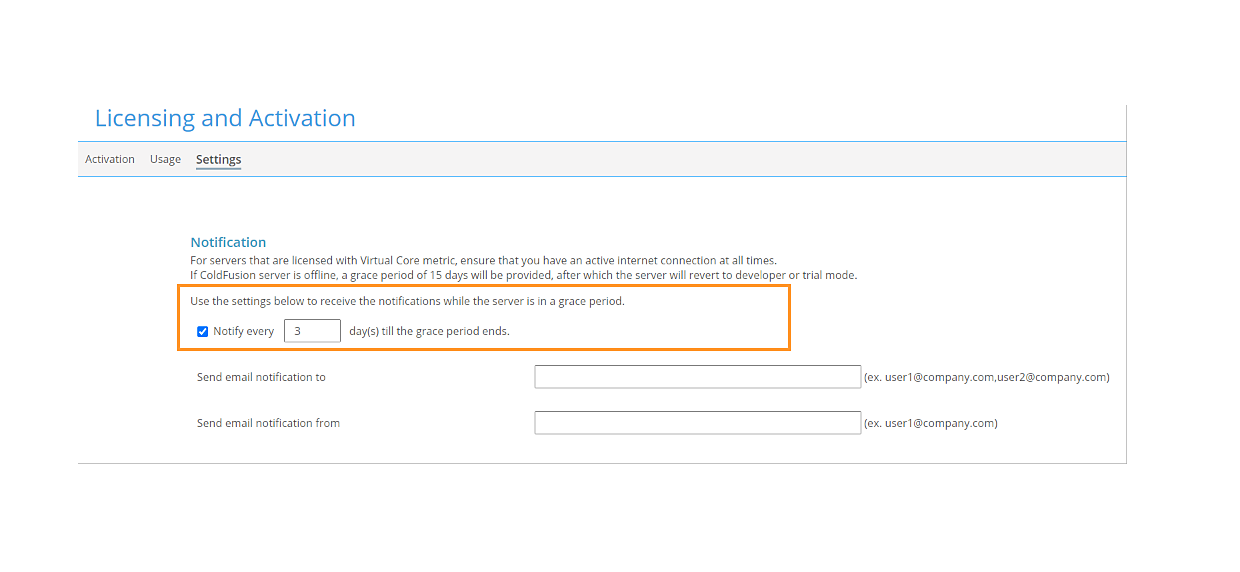
If you have enabled the notifications, you will receive emails for the number of grace period left.
After the grace period ends, ColdFusion enters the Trial or Developer mode.
To re-activate ColdFusion, connect the machine to the internet, and restart the server.
Usage calls
On every server restart as well as at regular intervals, a usage call is made to the licensing server to send the status of the server (started/running/shutdown).
What information does Adobe collect during the usage calls?
The data that Adobe collects are the time stamp and the status of the server at that instant.
Usage data
If you enable the option, ColdFusion licensing servers receives details of licensing details, such as, time stamp and server status. If you do not want the licensing server to receive any data, disable the option.
Auto restart instances
Enable the option if you want the instances to be automatically restarted after any of the following actions:
- Activation of a license
- Deactivation
- Modify usage settings
If for any reason instances fail to restart automatically, you must restart the instances manually.
Deactivation of ColdFusion server
After activating your ColdFusion server, you can deactivate it. To deactivate the license, click the Deactivate buttton.
The ColdFusion servers that are licensed with the Virtual Core metric, ensure that you have an active internet connection at all times. If the ColdFusion server is offline, a grace period of 15 days will be provided, after which ColdFusion server reverts to the developer or trial mode.
You can also deactivate a server when they are no longer using a ColdFusion server. An internet connection is mandatory to deactivate a server.
Do I have to delete or modify any file to deactivate ColdFusion?
No, you need not modify or delete any file to deactivate ColdFusion.
What if I cannot be online? Can I still deactivate a Virtual Core license?
No, you must be online to deactivate ColdFusion.
Can I activate a Virtual Core license offline?
No, you cannot activate a Virtual Core license offline. To activate ColdFusion, connect to the internet from your server and retry activation.
What happens to ColdFusion server after deactivation?
After deactivation, ColdFusion enters the trial or developer edition.
What is Current activation?
Current activation displays the number of activations of serial keys that are being used. This also includes deactivation.
Usage page
The Usage page gives an analytical view of your license’s usage in terms of number of instances used, usage graph, and much more.
To view the usage statistics for your license, click Track Usage .
The License Usage Data page lists the device ID for the instances that are activated, status (whether activated or not), number of cores, and deployment plan.
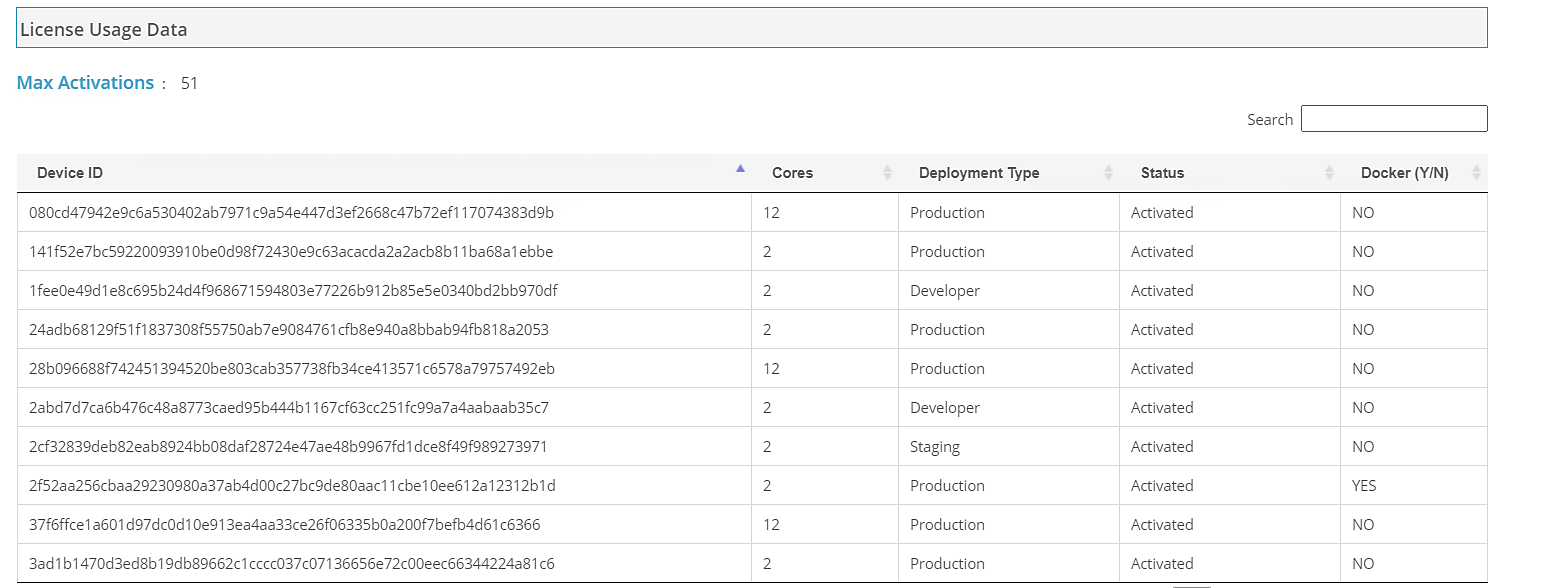
The Max activation count displays the maximum number of server activated with the same serial key. The list also includes the count of servers that are deactivated.
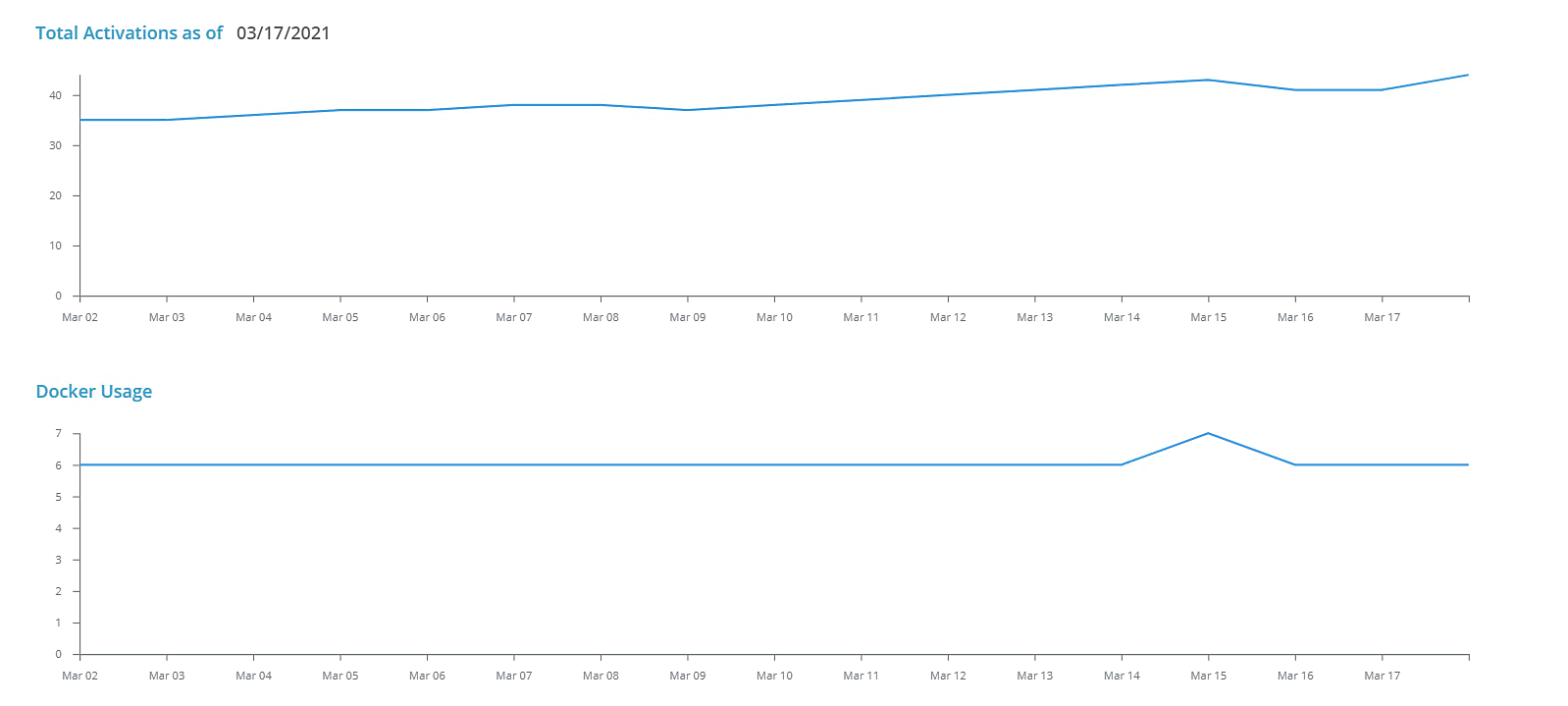
You can also see a plot of the number of the number of activations and Docker containers in use.
To activate and deactivate containers using the Admin APIs, use the snippet below:
<cfscript>

      adminObj = CreateObject("component","CFIDE.adminapi.administrator")

      adminObj.login("<admin-password>")

      licenseObj = CreateObject("component","CFIDE.adminapi.license")

      writedump(licenseObj)

      //activateResp = licenseObj.ACTIVATENOW("<serial-number>");

      //writedump(activateResp);

      deactivateResp = licenseObj.DEACTIVATENOW();

</cfscript>
Settings
If you have any proxy server defined in Package Manager > Settings page, the same proxy server will be used for licensing.
Data collected during activation
| Component | Description |
Device ID | The ID of the host machine where ColdFusion is installed. |
New and previous serial number | If you are updgrading or updating versions, then both serial numbers are collected. |
ColdFusion version | The version of ColdFusion that is installed. |
Deployment type | Development, Production, Disaster Recovery, Testing, or Staging. |
Number of cores | The number of cores (physical or virtual). |
Whether multiple instances are created | True or False |
Docker deployment | True or False |
Whether deployed on cloud, for example, AWS or Azure | True or False |
Cloud platform deployed on | For example, AWS or Azure. |
We're glad. Tell us how this page helped.
We're sorry. Can you tell us what didn't work for you?
Share additional feedback to help us improve.
0/255
|