Whatever message this page gives is out now! Go check it out!


Create a project
Last update:
Mar 16, 2026
Learn about project basics and how to create your project in Adobe RoboHelp.
Note:
For the latest RoboHelp known issues and workarounds, refer to the RoboHelp: Known issues and workarounds article.
Note:
If you are a RoboHelp Classic user, upgrade your projects in a few simple steps. For more information, see Upgrade a RoboHelp Classic project.
A project is the core entity that you work with in Adobe RoboHelp. The basic element of a project is a topic. To start authoring your content, add topics to a project. Then, add navigation, configure project properties, and generate the desired output. A typical output of RoboHelp is a Help system in one or more formats, such as Responsive HTML5 and PDF. A RoboHelp project file has the
.rhpj extension.Besides the project file, RoboHelp maintains various project components, such as topics, Table of Contents, variables, and skins, in separate files. As an author, you need not manipulate the project file or the component files directly. Whenever you edit a project from within RoboHelp, the project file and any other affected project component file are updated automatically.
Project components
The following table lists the various components of a RoboHelp project:
| Project component | Description |
|---|---|
| Topic | The basic element of your content structure in RoboHelp. A topic can contain text, multimedia such as images and videos, navigation links, and more. When you plan a topic, make sure that it is easy to consume and reuse. Avoid creating topics that are very long or very short. From the Author toolbar, click the Contents icon to work with topics. For more information, see Work with topics and folders. |
| Folder and subfolder | The components that help you organize the contents of your project. You can create folders and subfolders to organize topics and assets, such as images, videos, and style sheets. From the Author toolbar, click the Contents icon to create, rename, or delete folders and subfolders. For more information, see Work with topics and folders. |
| Image and multimedia | Graphics, audio, video, animation, and other audiovisual assets that you can add to a topic to enhance your content. In an open topic, you can find the Insert Image and Insert Multimedia icons in the toolbar on top of the authoring area. For more information, see Work with image and multimedia content. |
| Table of Contents (TOC) | A TOC helps present a hierarchical outline of the content in a Help system. During authoring, you can browse the TOC and select folders or topics to view and edit. In the published output, end users can use the TOC to quickly view the scope and coverage of content in the Help system. A TOC also allows the end user to quickly jump to a topic of choice. From the Author toolbar, click the Table of Contents icon to work with TOC. For more information, see Create and manage a Table of Contents. |
| Index | Allows the end user to navigate through a Help system using keywords or phrases that you've specified. These keywords or phrases require to be associated with specific topics. An index can include multiple levels of keywords and cross-references to other keywords. From the Author toolbar, click the Index icon to work with indexes. For more information, see Create and manage an index. |
| Glossary | Displays the list of definitions for terms or phrases in a Help system. You can filter glossary terms with the help of conditions, link to a glossary file external to the project, and maintain multiple glossary files in a Help system. From the Author toolbar, click the Glossary icon to work with glossaries. For more information, see Create and manage a glossary. |
| Condition tags | Allow you to define subsets of content and generate multiple Help systems from the same project. Condition tags help you manage your content for different needs, such as different target audiences and delivery formats. From the Author toolbar, click the Condition Tags icon to work with condition tags. For more information, see What is conditional content. |
| Variables | Allow you to store text or a phrase that you can update in one place but use in many places across the project. Variables help you make quick global updates and ensure consistency. A good use case of variables is to store information such as product names and release dates. From the Author tab, click the Variables icon to work with variables. For more information, see Create and use variables for easy updates. |
| Snippets | Allow you to create and manage reusable content. Global snippets help you to identify content and replace it across several topics in a single step, which saves time and facilitates efficient content changes. From the Author toolbar, click the Snippets icon to work with snippets. For more information, see Single-source with snippets. |
| Browse sequences | A browse sequence is a linear list of files that helps you logically navigate to the next relevant topic. You can add, edit, and delete browse sequences. In a browse sequence, you can drag and drop topics from the Contents panel and TOC, change the sequence of topics, and delete topics. From the Author toolbar, click the Browse Sequences icon to work with browse sequences. For more information, see Create and manage browse sequences. |
| Reports | You can generate various reports using the Reports icon on the Author toolbar. You can then view and share reports of broken links, unused files, missing topics, and more. From the Author toolbar, click the Reports icon to work with reports. For more information, see Generate Reports. |
| Output presets | Allow you to define your preferred output format and content layout. You can also assign search-related settings for your output, such as Enable autocorrect in search box, Show definitions from the glossary, and more. From the Output toolbar, click the Output Presets icon to work with output presets. For more information, see Generate output. |
| Skins | Allow you to define the appearance of your HTML output. Just as a website template comes with a unique appearance, a RoboHelp skin can add a unique appearance to your output. You can add a logo, choose the color of borders and headings, and do more to make your output look good. You can preview the output in a skin of your choice. From the Output toolbar, click the Skins icon to work with skins. For more information, see Work with skins. |
| Labels | Allow you to edit and delete language-specific labels, and undo or redo the edits. You can also export language wise labels as XML for localization, and import a translated copy for a specific language. From the Output toolbar, click the Labels icon to work with labels. |
Variable sets | Variable sets lets you define a different set of values for your variables. A variable set enables you to customize variables for a specific output by overriding the values of the variables. In a newly created variable set, all the variables from the project are listed. From this list, you can override the values of the variables that you want to customize for a specific output. You can create different variable sets as per your requirement. When you generate the output, you choose the appropriate variable set, and produce the required output. From the Author tab, click the Variables icon to work with variable sets. For more information, see Variable sets. |
| Condition expressions | A condition expression controls the inclusion of tagged source content or its exclusion from the output. Depending on the condition tags used in an expression, the corresponding source content is included in the output. You can define various tag combinations in the expression using OR, AND, and NOT operators to customize the inclusion or exclusion of content in the output. Condition expressions are not published along with the source content and do not appear in the output. From the Output toolbar, click the Condition Expressions icon to work with condition expressions. For more information, see Configure condition expressions and dynamic content filters. |
| Dynamic content filters | A dynamic content filter controls the display of content in the output. Add a dynamic content filter and then customize it by adding condition tags. The filters are published along with the tagged source content. From the published filters displayed in the output, your end-users can select specific filters to view selective content and hide the rest of the content. Dynamic content filters facilitate quick retrieval and consumption of specific information, instead of having to go through the entire published content. From the Output toolbar, click the Dynamic Content Filters icon to work with dynamic content filters. For more information, see Configure condition expressions and dynamic content filters. |
| Stop words | Stop words add common (minor) words, such as “a” or “the” in the stop list file. During the search, RoboHelp ignores the words listed in the stop list file to display optimal and relevant search results. You can add, edit, and delete stop words for different languages. RoboHelp creates a stop list file for each language, for example, English (US).stp.From the Output toolbar, click the Stop Words icon to work with stop words. |
| Synonyms | You can define multiple synonyms for a word to allow for variations in search terminologies. For example, you can define "cursor," "pointer," and "mouse" as synonymous terms. If the search term is "mouse," RoboHelp returns all topics containing the word "cursor," with that term highlighted. You can add, edit, and delete synonyms for different languages. RoboHelp creates a synonyms file for each language, for example, English (US).syn.From the Output toolbar, click the Synonyms icon to work with synonyms. |
| Style sheets | Stores styles are defined to control the appearance of your content. Instead of formatting content locally, create styles for different elements of your content (for example, the different heading levels) and apply a style sheet at a project- or topic-level. To apply a style sheet provided by RoboHelp to an open topic, go to the Properties panel > Topic tab > Style Sheets. |
Start a project
Do one of the following to start a project in RoboHelp:
Work with sample projects
Before creating a new project, you can experience different features and styles from sample projects. Follow these steps to explore the sample projects:
- Click on Home
 icon. This opens the welcome screen.
- In bottom left, click on Open Sample Project and select any sample project to explore the features. You'll find three sample projects named as:
- About RoboHelp
- Compass Travel
- FintecNEWS
Tip:By default, these sample projects are stored in your Documents directory. If they accidentally get deleted from the directory, you can copy them from the directory where RoboHelp is installed. You can locate them in the project directory with locations such as:For Windows: ..\Program Files\Adobe\Adobe RoboHelp\resources\data\template\projectsFor macOS: //Applications/Adobe RoboHelp/Adobe RoboHelp.app/Contents/Resources/resources/data/template/projects
Create a project
Once you've launched RoboHelp, follow these steps to create a project from scratch:
- Choose File > New Project or press
Alt+Ctrl+N. The New Project dialog box appears.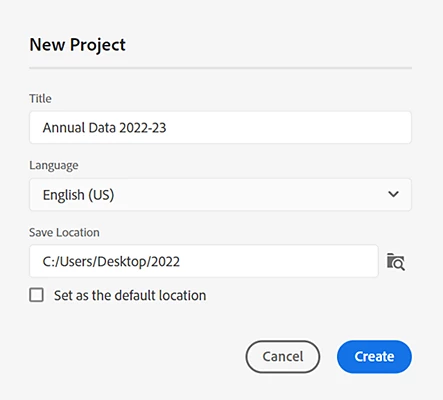
- In the New Project dialog box, do the following:
- Title Enter the name of the project.
- Language From the drop-down list, select your preferred language for the project's content.
- Save Location Specify the location to save your project. Click
 to browse your computer and select your preferred folder to save your project in that folder. Once you change the default project location, select the "Set as default location" checkbox to set the preferred folder as the default location.
- Click Create.To add topics and start authoring content in your project, see Work with topics and folders.
When a new project is created, or any classic or RoboHelp 2019 project is upgraded, a uniquely defined value is automatically generated referred as Project ID. It is defined in the
.rhpj file. To check how to track the translation files using the Project ID, see Translating content to multiple languages.
Upgrade a RoboHelp Classic project
To open a RoboHelp Classic project (
.xpj file) in RoboHelp, follow these steps:- Choose File > Upgrade RoboHelp Classic Project.
- In the Open dialog box that appears, browse your computer, select the desired
.xpjproject file, and click Open. - In the Upgrade Project dialog box, click Create.The RoboHelp project is now saved as a
.rhpjfile.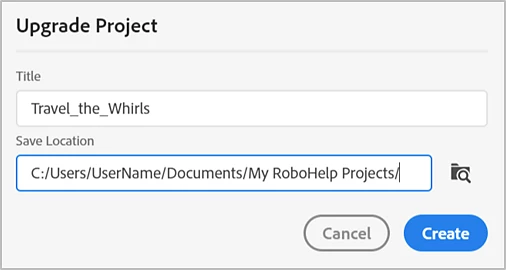
Note:
The Project ID is automatically assigned to all the projects upgraded from Classic and RH2019.
Note:
On upgrade, all the files will remain in the folders where they were in Classic. Only the files present in root folder will move to the "assets" folder.
Note:
After upgrade, all the known document extension files like .DOCX , .XLSX, etc. go in
assets > docs folder. Rest all other files go into assets > misc folder. For example, .MSG file.Add & Manage Images and other files
While upgrading a project, only images and multimedia from the root folder are moved to Assets folder, rest all the files remain where they are placed in the Classic project.
Import Baggage files folder
All the baggage files, whether used or not, are now imported into the upgraded project.
Upgrade from RoboHelp 2019
Select Import Settings from the home screen to import application-wide settings if you are upgrading from Adobe RoboHelp 2019 (New UI).
On importing, the file includes the following settings:
- Application Preferences
- Connection Profiles
- Publish Profiles
- Dialog and Panel Sizes
- Scripts
- User Dictionaries
Note:
This is applicable only to the users who are moving from RoboHelp 2019.
Save a project
To save your project or file in RoboHelp, you can do the following:
- To save your project, choose File > Save All or press
Ctrl+S. - To save your topic, choose File > Save or press
Alt+Ctrl+S.
Alternatively, you can click  in the upper-left corner of the standard toolbar to save your work.
Configure project settings
You can specify and edit the title and language of the project, along with settings such as topic status, colors, tag groups, and version control.
To access the Project Settings dialog box, follow these steps:
- Once you've launched RoboHelp and opened your project, choose File > Project settings or press
Ctrl+Shift+/. - In the Project Settings dialog box, you can specify settings in tabs such as General, Topic Status, Colors, and more.See Project Settings for more details.
- Once you've entered your desired settings, click Done.
Project Settings
You can find the following tabs in the left panel of the Projects Settings dialog box.
General
In the Project Settings dialog box, the General tab is selected by default. To configure the General tab, do the following:
- Specify or edit the name of the project in Project Title.
- In Language, click
 to select the desired language for your project.
- In Default Stylesheet, click to select a desired style sheet for your project. When you create a topic in your current project, this style sheet is automatically applied to the topic.
- In Default Word Import Settings, choose the file that contains the default settings for converting Word files to HTML files.To edit this file, choose File > Import > Word Document and configure the settings in the General tab of the Word Import Settings dialog box. For information about the General tab, see General.
- Select Do not allow inline formatting to avoid applying new inline formatting. Previously applied inline formatting remains unchanged.
Topic Status
You can select a topic status such as Draft, In Progress, and Ready for Review to indicate the current stage of authoring of your topic. You can also add a custom status, rename and delete an existing status, and reorder the statuses.
Note:
The topmost status in the list of statuses is considered as the default status for new topics.
- Select the Topic Status tab from the left panel of the Project Settings dialog box.
- To create your own status, specify the name of the status in Add a new status and click
 against it. The new status is added to the list of statuses.
- To rename a status, click its name and modify it.
- To reorder statuses, click
 against a status and drag-and-drop it at the desired position.
- To delete a status, click
 against it.Note:If you delete a status, all topics that are in the deleted status move to the default status. For example, the default (topmost) status in the Topic Status tab is Draft and some of your topics are in the Review status. If you delete the Review status, all topics that were previously in the Review status move to the Draft status.
Colors
You can add or edit a color and maintain a list of specified colors for your project. You can also rename or delete existing colors.
- Select the Colors tab from the left panel of the Project Settings dialog box.
- To add a color, click
 to choose a color, specify a name in Color Name, and click .The new color is added to the list of colors. The list of colors are shown as swatches in Color Picker dialog.
- To rename a color, click its name and modify it.
- To reorder colors, click against a color and drag-and-drop it at the desired position.
- To delete a color, click against it.
Note:
To know more about Color Picker, see Use the Color Picker dialog box.
Tag Groups
Tag groups help you group multiple related condition tags to provide relevant content to a focus group. You can add a tag group to the list of default tag groups. You can also rename and delete existing tag groups.
- Select the Tag Groups tab from the left panel of the Project Settings dialog box.
- To add a tag group, specify its name in Add a new tag group and click against it.The new group is added to the list of tag groups.
- To rename a tag group, click its name and modify it.
- To delete a tag group, click against it.Note:A tag group cannot be deleted if it contains tags. Before you delete a tag group, ensure that all the tags grouped under that tag group are deleted. To delete a tag, in the Condition Tags panel, right-click the tag and click Delete.
Font List
Fonts are essential for the look and feel of your publication, maintaining consistency through all your topics. For the fonts to work, they must be installed on the computer building the output.
- Select the Font List tab from the left panel of the Project Settings dialog box.
- To add fonts, specify the name in Add Fonts group and click against it. You can also add multiple fonts to one line separated by a comma.The new fonts are added to the list of fonts.Note:If multiple fonts are added to one line, the browser will select the first one it finds installed in your system.
- To rename a font, click its name and modify it.
- To reprioritize the fonts, click against a font and drag-and-drop it at the desired position.
- To delete a tag group, click against it.
- Select the Do not include system fonts check box to limit the listed fonts. Selecting this option will exclude the list of system fonts from the font list.
Using file explorer, you will find the FontList.xml in Project > Settings. You can use this file to copy the fonts to another project.
Panels
With a large number of panels available in RoboHelp, your workspace can become cluttered very quickly. To optimize the display of the left toolbar in the Author and Publish view, show/hide button associated with the panels can be used, thus maximizing your working view, as needed.
- Select the Panels tab from the left panel of the Project Settings dialog box.
- You can switch on or off the toggle button associated with individual panels, as required.
- Click Done.
More like this
We're glad. Tell us how this page helped.
We're sorry. Can you tell us what didn't work for you?
Share additional feedback to help us improve.
0/255
|