Whatever message this page gives is out now! Go check it out!


What's new in RoboHelp (2020 release) Update 4
Last update:
Mar 14, 2024
Boost your performance and productivity with powerful authoring and extended publishing capabilities that take your content to the next level.
Adobe RoboHelp (2020 release) Update 4 introduces a new Knowledge Base output preset with article-based publishing, support for Zoho Knowledge Base, Multi-level Autonumbering, enhanced user Experience with accessibility improvements, Search and Frameless skin enhancements, other authoring enhancements. Read on to know more.
In this document,
Install the update
Ensure that you have an active Internet connection.
To install Update 4 of the 2020 release of RoboHelp, click Help > Check for Updates.
Then follow the instructions.
For more information, check this community post.
What's new and changed
Accessibility (Section 508 compliance)
We've enhanced features that are related to accessibility. Most of the features are a part of the new improved, more Section 508-compliant User Interface. Some of them are:
- Navigation using Tab, Shift + Tab, Arrow, and Enter keys
- Keyboard shortcuts for context menu
- Alt key support for main menu
- Improved color contrast for highlight colors.
The RoboHelp Accessibility Conformance Report is available here. We do plan to have a new one with these accessibility improvements updated on this page in next few months.
Application / User Interface Improvements
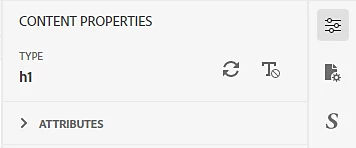
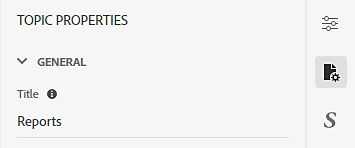
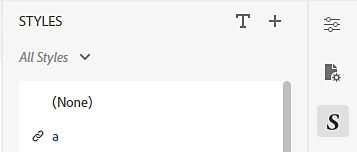
Reorganized right panel
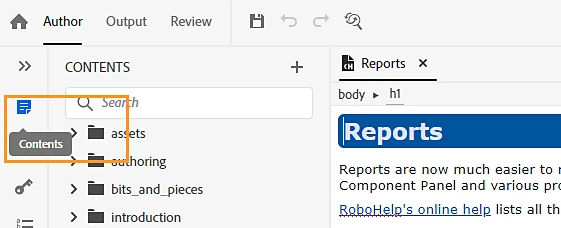
In this release, the right panel has been reorganized according to the properties and context. You can expand the panel and access more options to modify styles, topic properties, table properties, spell check, or content properties.
 |  |  |
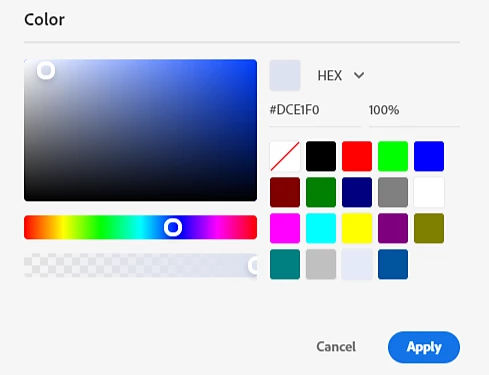
Enhanced color experience
Apply a richer repertoire of colors to the text with a redesigned color palette. In addition, you can define the color in HEX, RGB, or HSB format.
New tooltip experience
The tooltips are now more intuitive, easy to navigate, and are more prominent throughout the application. Also, the tooltips are Section 508-compliant.
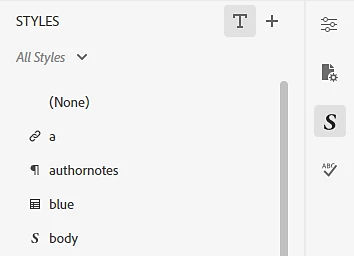
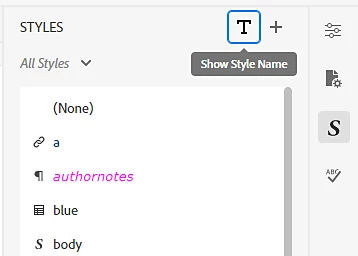
List styles by name
On the Styles panel, toggle between listing the available styles by name or preview.
 |  |
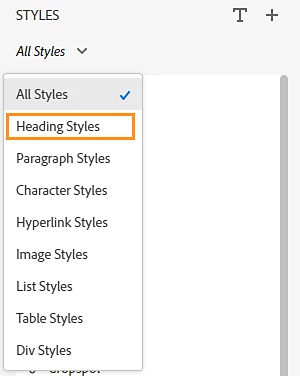
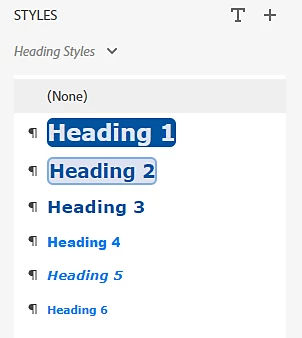
New category- Heading Styles
Choose Heading Styles from the All Styles drop-down list. You can then see all headings that have a style applied to them. This is convenient if you only want to see the styles on a heading.
 |  |
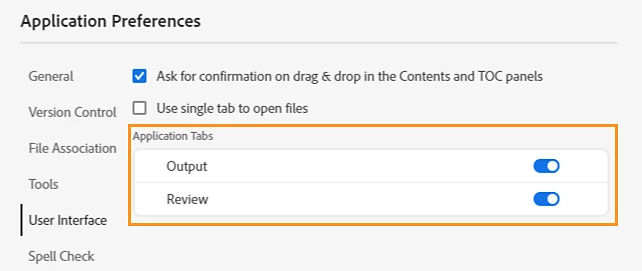
Turn off Output and Review tabs
In an organization, if you want authors to not trigger output or review, the Update 4 allows you to disable the Output and Review tabs.
Menu enhancements
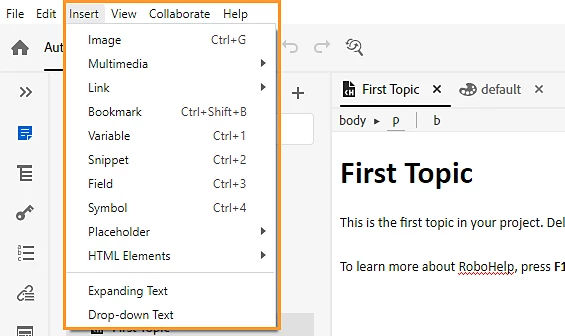
In the toolbar, a new menu option, Insert, has been added. Using this option, in a topic, you can insert an image, video file, YouTube URL, bookmark, variable, snippet, and many more. Expand the menu to see the element that you can add in a topic.
For quick access, press the Alt+I key.
The main menu is reorganized and is made context specific for the Author, Output, or Review tabs.
Multi-level Autonumbering
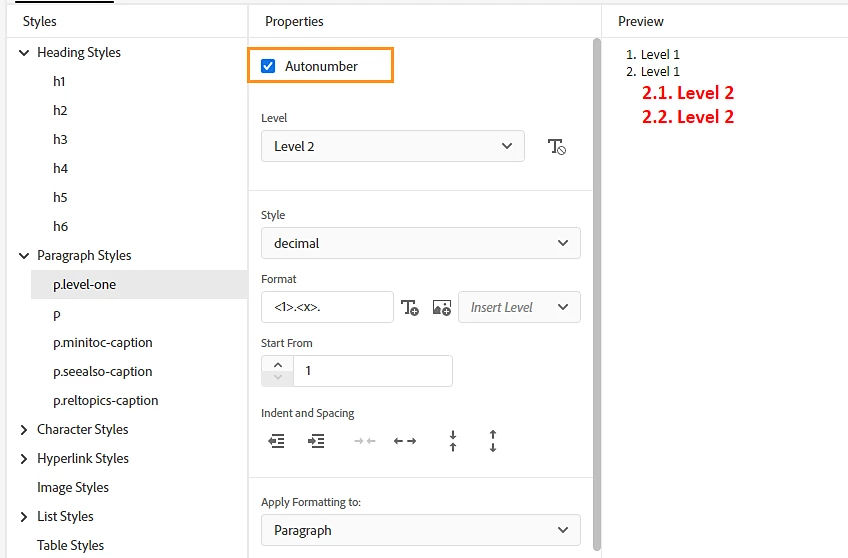
Get more control on style on number and content separately using CSS multi-level numbering.
For more information, see this article.
Use the Tab and Shift + Tab keys to control level in the topic editor and also select multiple paragraphs and apply auto-number class in one go.
Support for condition expressions in the topic preview
You can now see the condition expressions in the Preview mode in addition to filtering each individual condition tag.
For more information, see this article.
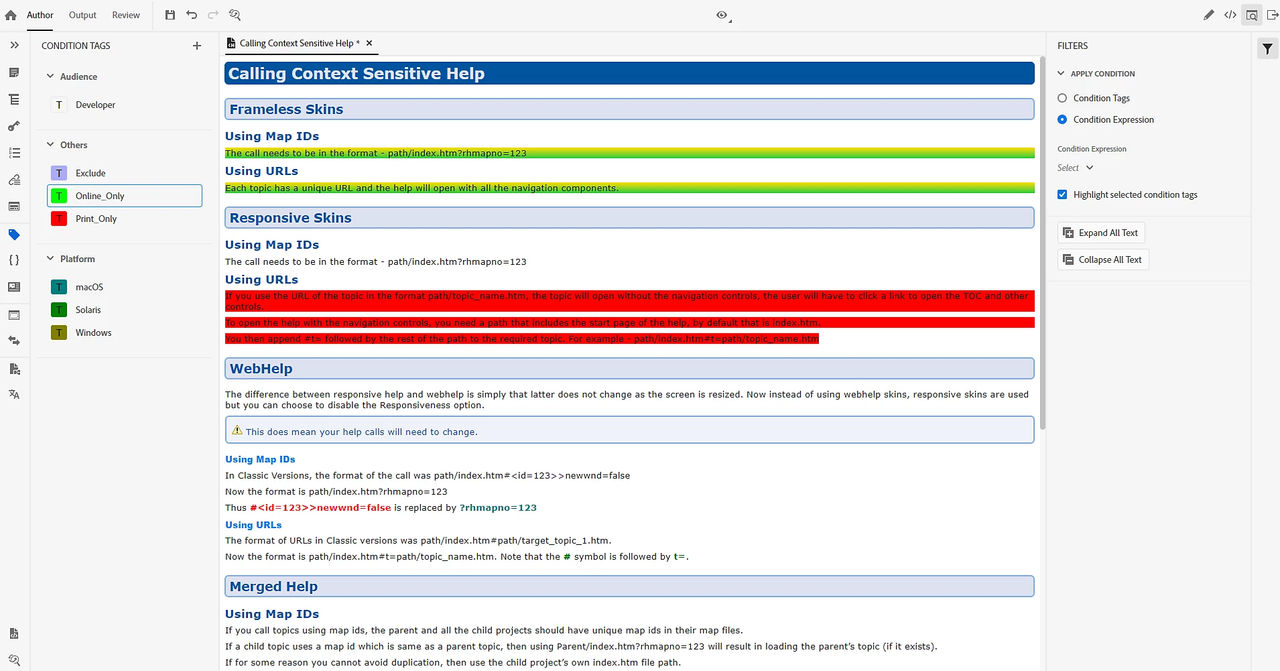
- The following new keyboard shortcuts have been added:
- Insert a bookmark - CTRL/CMD + SHIFT + B
- Launch the Styles panel and apply a style while authoring - CTRL/CMD +SHIFT+S
- Add a hyperlink on an image by dragging a topic onto the image. The image then includes a hyperlink to the topic.
- Save a topic as a PDF. There is an option to save a topic as PDF in the content menu on the authoring area.
- In the Link To dialog, to quickly insert a URL, double click any topic from Project Files, Recently used or Searched list.
Machine translation profile
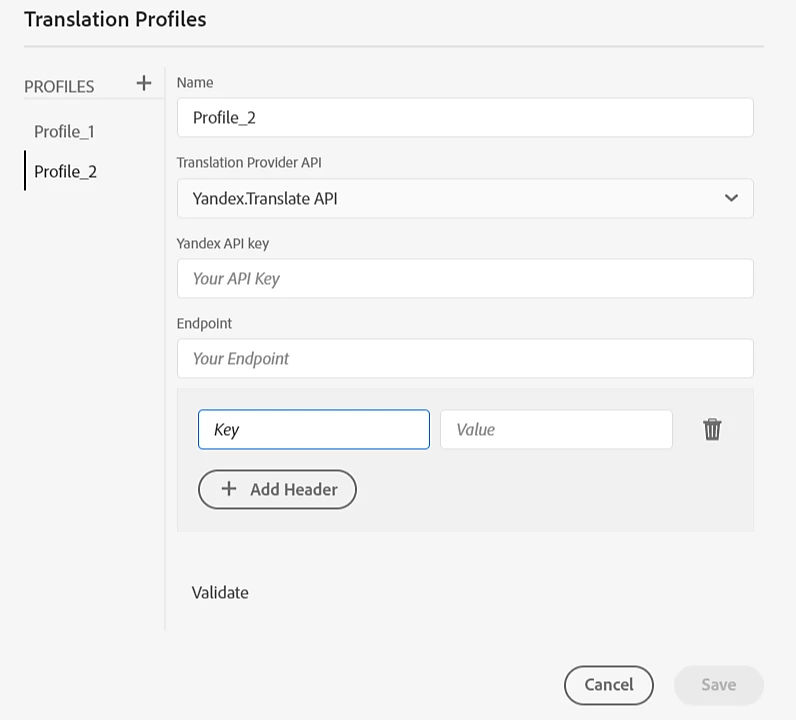
Connecting to machine translation vendor APIs usually require passing custom data in the header of the API call.
In earlier releases of RoboHelp, there was no support to add custom header. With update 4, Now users can add valid custom headers corresponding to a particular Translation vendor API.
For more information, see Translating content to multiple languages.
Adding header is as simple as adding key-value pair. For example, Microsoft translation APIs require the following:
- Key = Ocp-Apim-Subscription-Region
- Value = One of the following:
{ australiaeast, brazilsouth, canadacentral, centralindia, centralus, centraluseuap, eastasia, eastus, eastus2, francecentral, japaneast, japanwest, koreacentral, northcentralus, northeurope, southcentralus, southeastasia, uksouth, westcentralus, westeurope, westus, westus2, and southafricanorth }
Frameless and Responsive HTML5 output enhancements
For the Frameless and Responsive HTML5 output skins (Orange, Oceanic, Studio, and others), we've added a few options to improve the user experience.
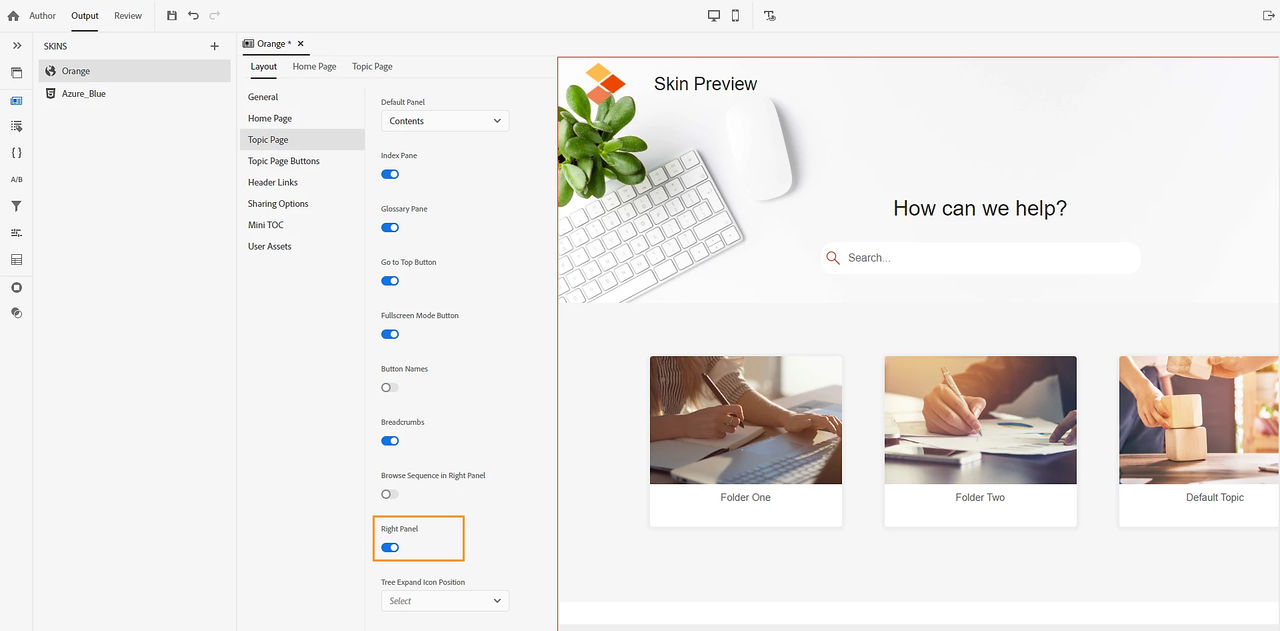
Hide right panel
In the Frameless skin, the right panel has a mini TOC and other options. Now you can hide and right panel and use that area for the topic content. In this case, the mini TOC is not shown. You can add the other options using the toolbar buttons.
Toggle the option Right Panel to control the visibility.
Option to use a Topic Url
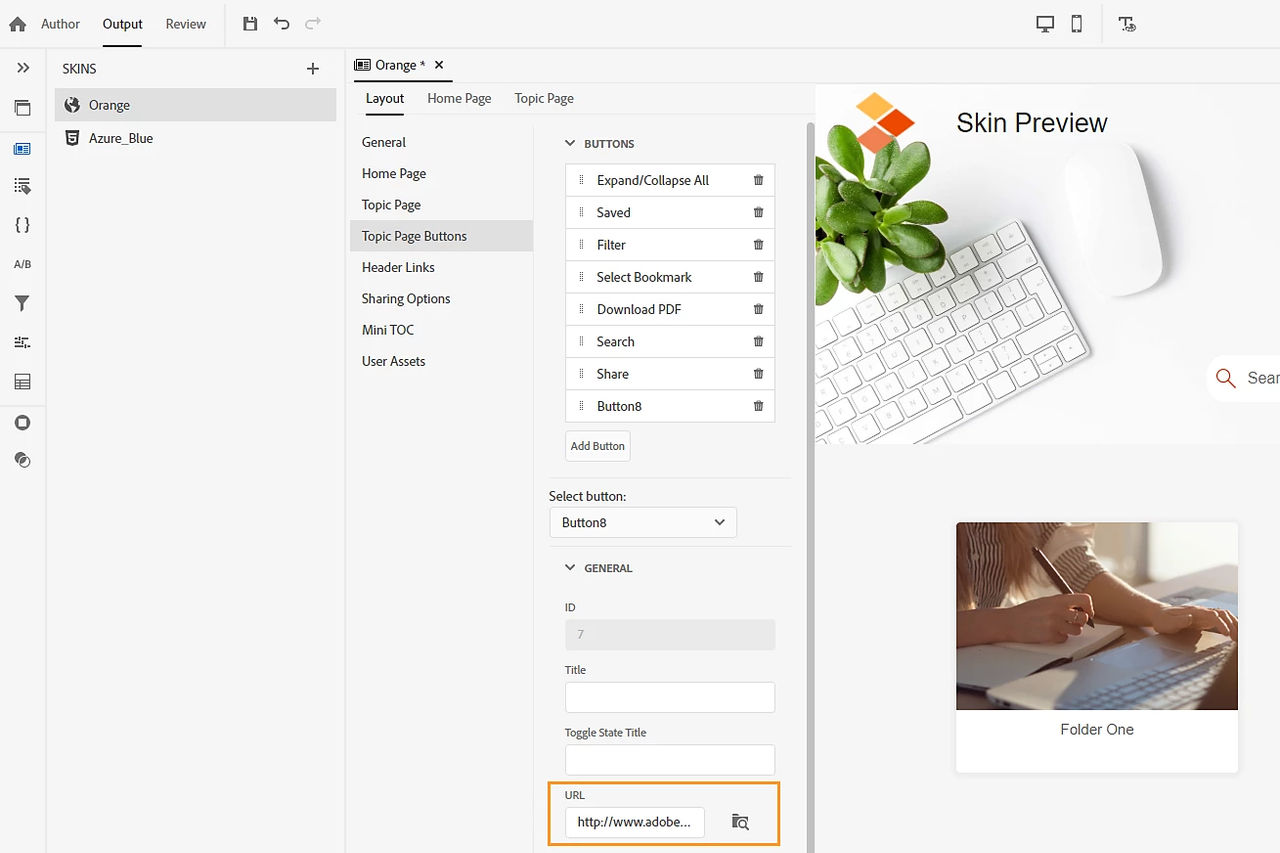
Now you can use a topic URL in addition to the web URL for topic page buttons.
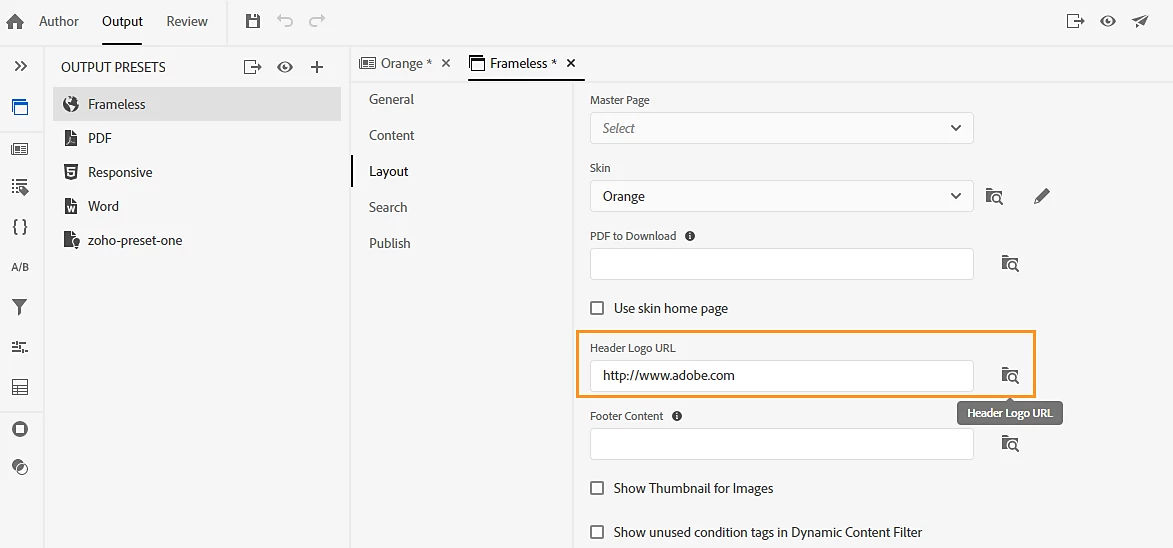
Insert URL in logo
By default, the Logo and Title points to the home page. If you want to point it to a web URL or to a different Topic, then you can do it now from the output preset settings.
Customize the search
You can now specify different placeholder text for different search boxes, for example, search boxes in the Index and Glossary tabs.
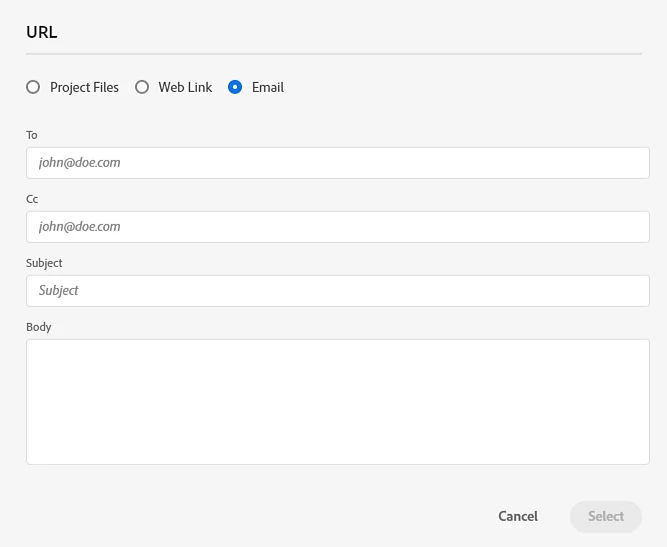
In Skin Editor > Layout > Topic Page Buttons, when you choose any button, you can insert any URL. You can set a URL to a project file, email, and a link to the web.
Search enhancements
Search-related enhancements in RoboHelp (2020 release) Update 4.
In Update 4, we've enhanced the search experience in terms of search results and context, so that you have more control of what you want to show.
Search results pagination
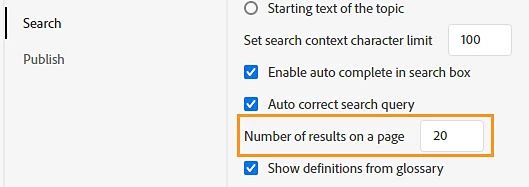
You can now specify the number of search results that appear on a page. By default, the value is set to 20 and can be configured.
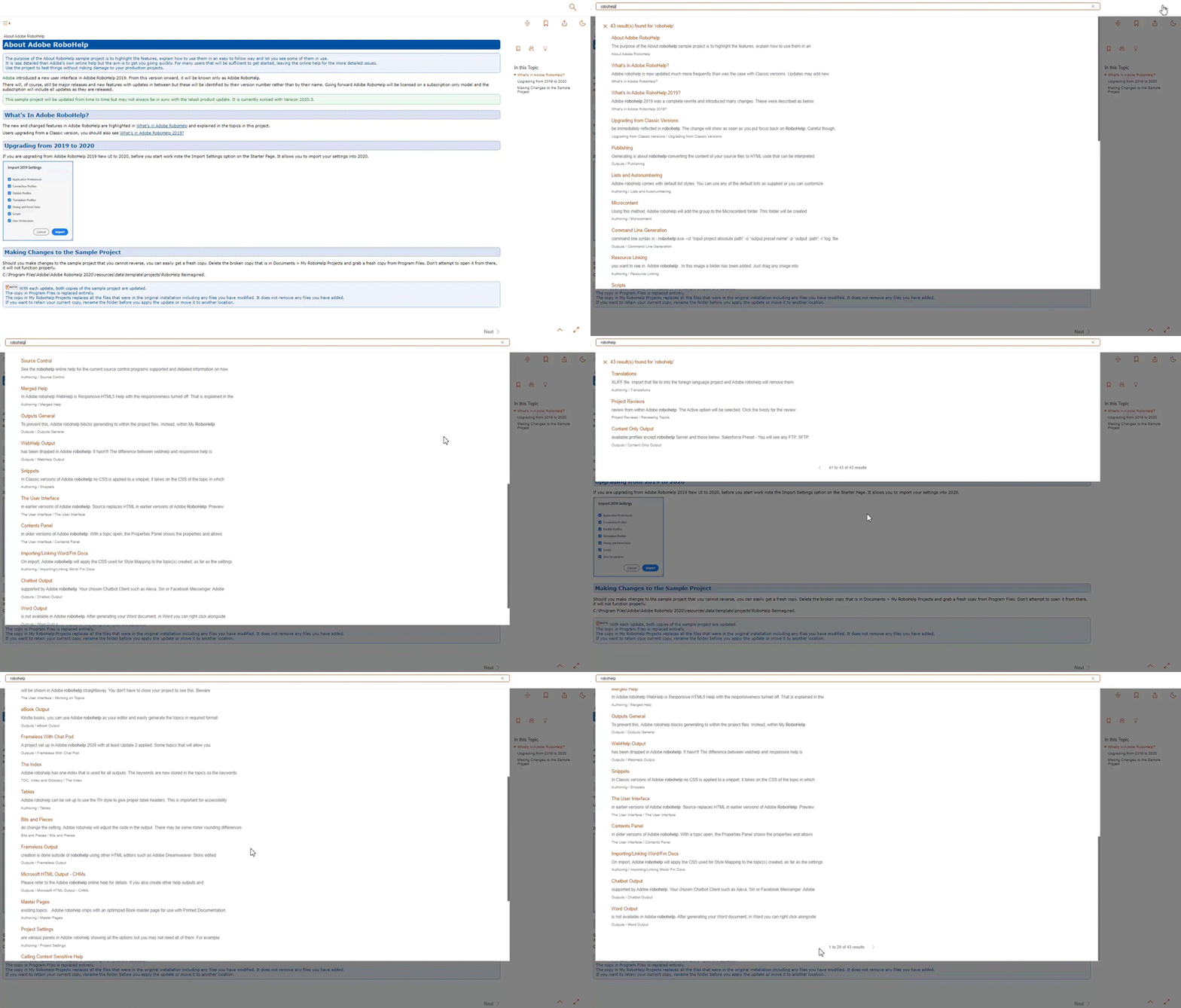
In the output, when you search for a term, you can see that the search results are paginated.
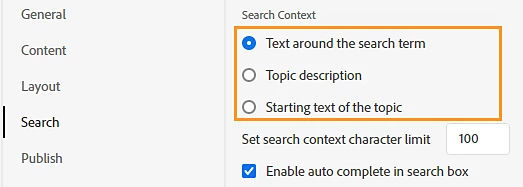
Search context
On the search page, for every result you can better control what context that you want to show.
Now you can specify whether text around search term is shown or the topic description or starting text of the topic. Alongside, ability to specify the character limit for search context can be specified.
Knowledge Base publishing
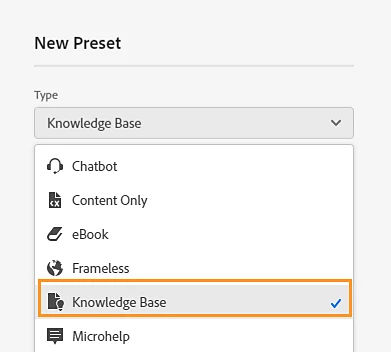
New preset- Knowledge Base
To publish your content to various knowledge bases, such as, Zoho, Zendesk, and so on, we've included a new output preset- Knowledge Base.
Unlike earlier updates, Knowledge base is now a new preset option.
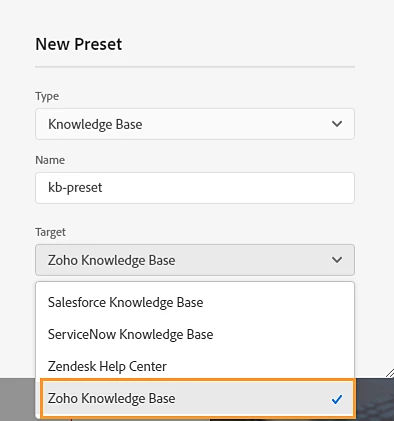
Once you choose this preset, you can choose any of Salesforce, ServiceNow, Zendesk, and Zoho Knowledge Bases. The options across all the four knowledge bases / CRM (Customer Relationship Management) portal are similar and details are available here:
Article-based publishing
In certain cases, you may only publish a subset of the articles to the knowledge base. This option enables you to select the articles that you want to publish.
Publish to Zoho knowledge base
In this release of RoboHelp 2020, you can publish your help topics to Zoho Knowledge Base.
To create a connection with Zoho Help Center, you must set up your account to get started. For more details, see Getting Started with Zoho.
More publish options
Publish as draft
There is a new option, Upload as draft, if enabled, the publish status for all articles on the portals will be in Draft state. By default, this option is disabled.
Word Output enhancements
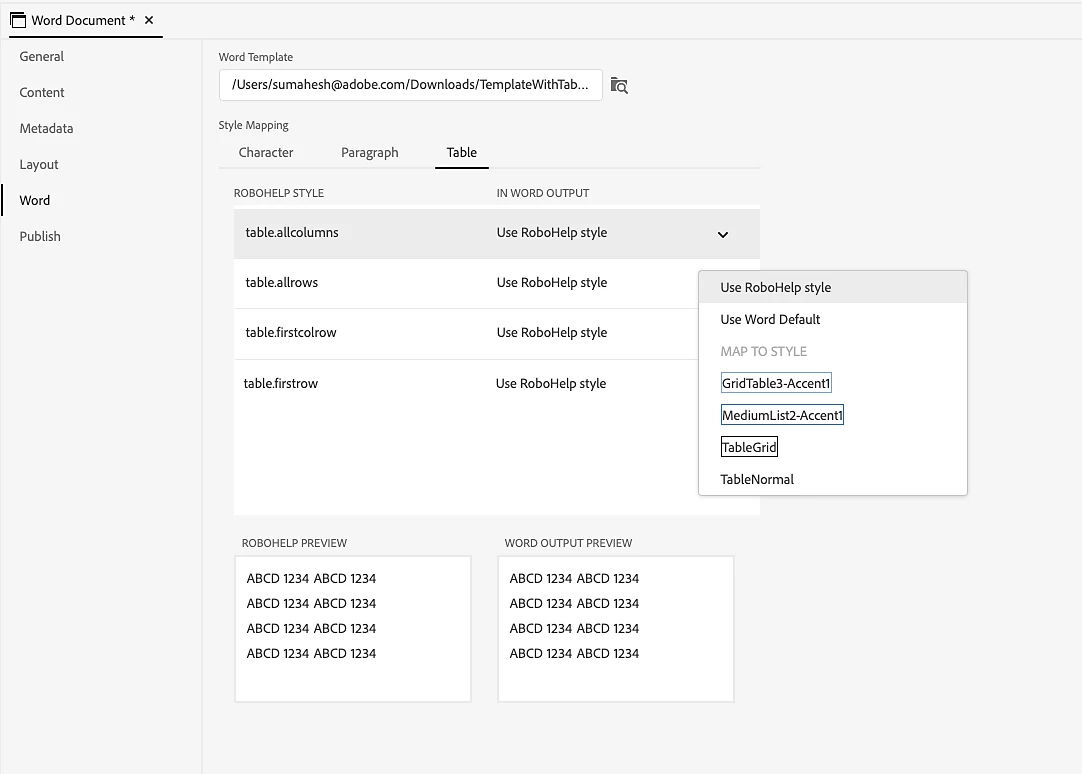
When generating a Microsoft Word output, it is important that the various paragraph, character, and table styles are mapped correctly.
In this release of RoboHelp, you can map RoboHelp table styles when generating an output in Microsoft Word. In the table sub-section of Word style mapping (Word Output preset), you can either use the RoboHelp table style to Word or default to the Word table style.
Bugs fixed in this release
To see the list of bugs that have been fixed in this release, see Fixed issues.
Have a question or an idea?
 | If you have a question to ask or an idea to share, come and participate in the Adobe RoboHelp Community. We would love to hear from you and address your queries. |
We're glad. Tell us how this page helped.
We're sorry. Can you tell us what didn't work for you?
Share additional feedback to help us improve.
0/255
|