Whatever message this page gives is out now! Go check it out!


Variable sets
Last update:
Apr 25, 2024
A variable is a text phrase or word that serves as a reusable piece of information, simultaneously used across multiple topics in your project. This makes your content easy to update. When you modify a variable or its value, every occurrence of that variable or value is updated across the project. For more information, see Variables in RoboHelp.
RoboHelp also supports variable sets, which lets you assign your variables alternate values. For example, a company can sell its products in two or more different geographies. In USA, the product is called Color, and in the UK, the product is called Colour. There can be other differences in branding.
Using variable sets, you first define a different set of values for your variables. When you generate the output, you choose the appropriate variable set, and produce the required output.
Configure Variable sets
You need to configure variable sets before adding any variables to them.
- In the Author tab, select Variables. The Variables panel opens.
- In the Variables panel, select
 to open the Variables editor.
- Select
 Settings to open the Configure variable sets dialog box.
- Add the Name of the Variable set and click
 to display the variable set name in the list below.
- Select Done. The variable set is displayed in the dropdown of the editor.
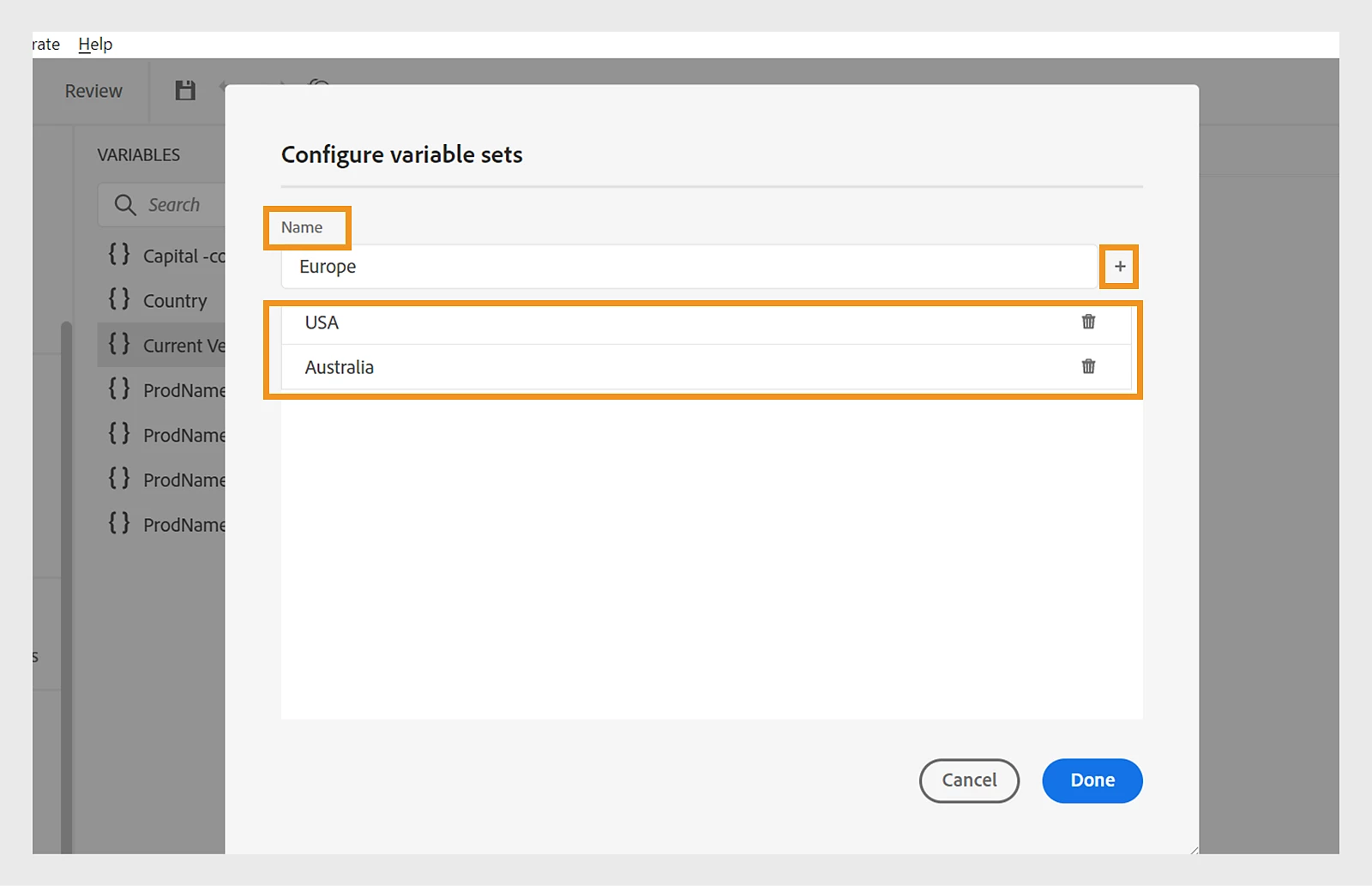
You can select delete  to remove a variable set.
Variable Set Operations
All variable sets have the same variables but can have different values.
You can view, edit, and preview the values for a specific variable set. Select a variable set from the Variable sets dropdown. The values of the variables are displayed according to the chosen variable set.
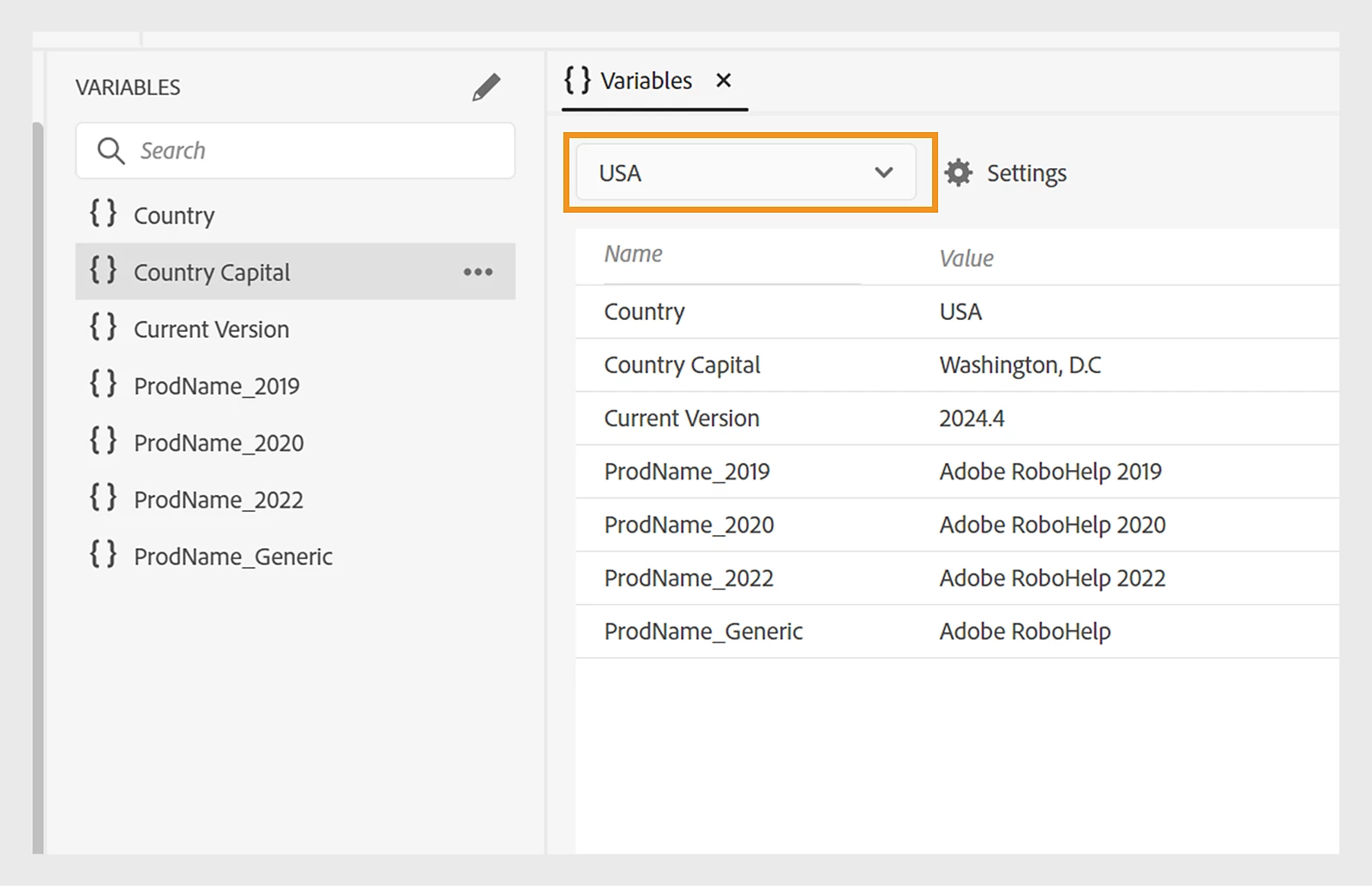
When you edit the values for the variables in specific variable sets, it overrides the default values and changes the values of the selected variable for that variable set. Whenever a new variable is added, deleted or duplicated to any variable set, it’s updated for all the other variable sets.
You can also preview the value of the variables from the variables editor. However on selecting the preview option for any variable from the Variables panel will always show the default variable set value.
Reset the value of a variable
Upon creation of a variable set, the value of the variables in the set can be edited. To reset the default value of the variable, select  Reset next to the variable.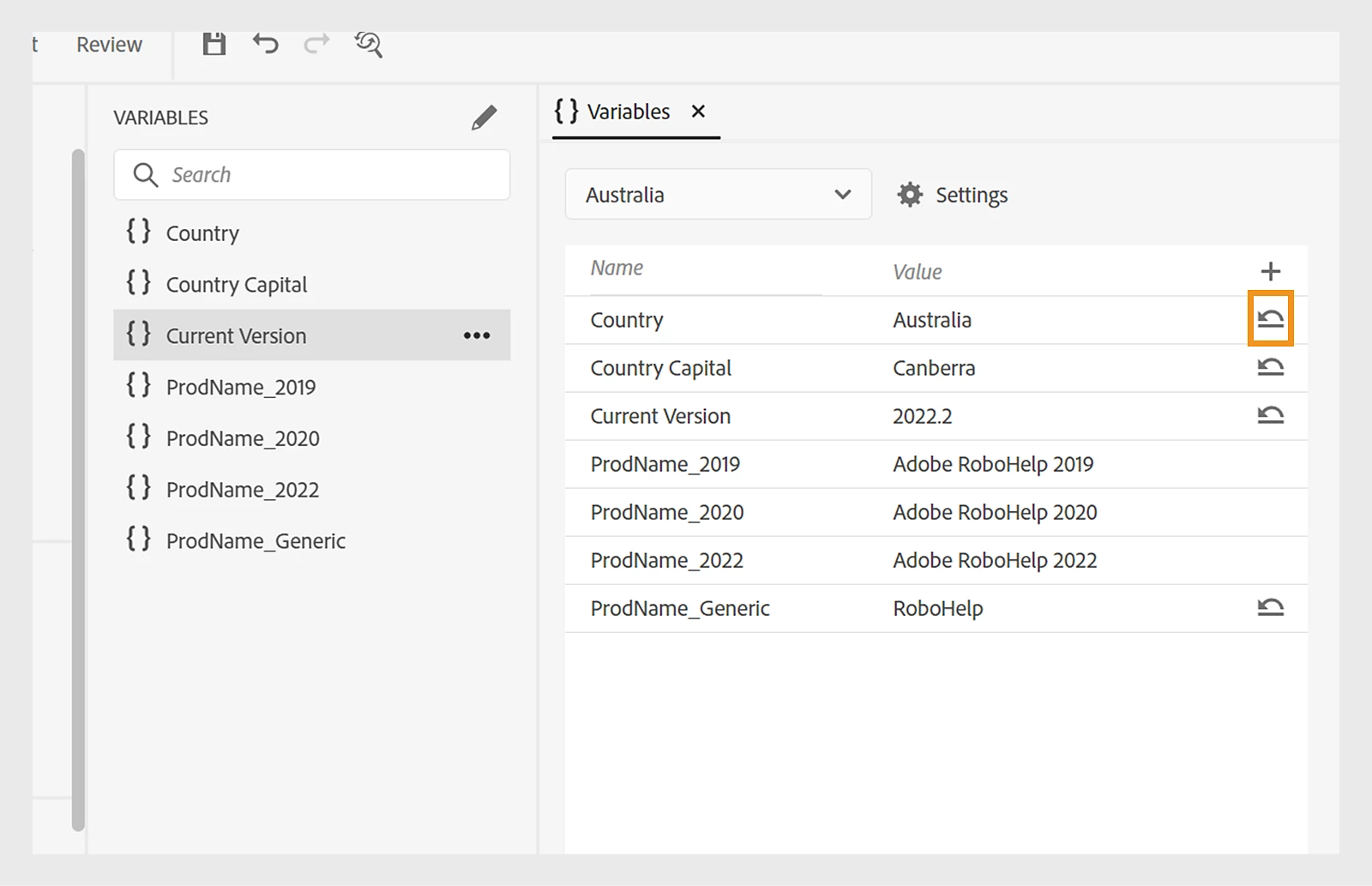
Generate output with a Variable Set
You can generate the PDF output with the values of different variables. Before generating the layout, choose a variable set from an output preset’s Variable set dropdown list to choose the values.
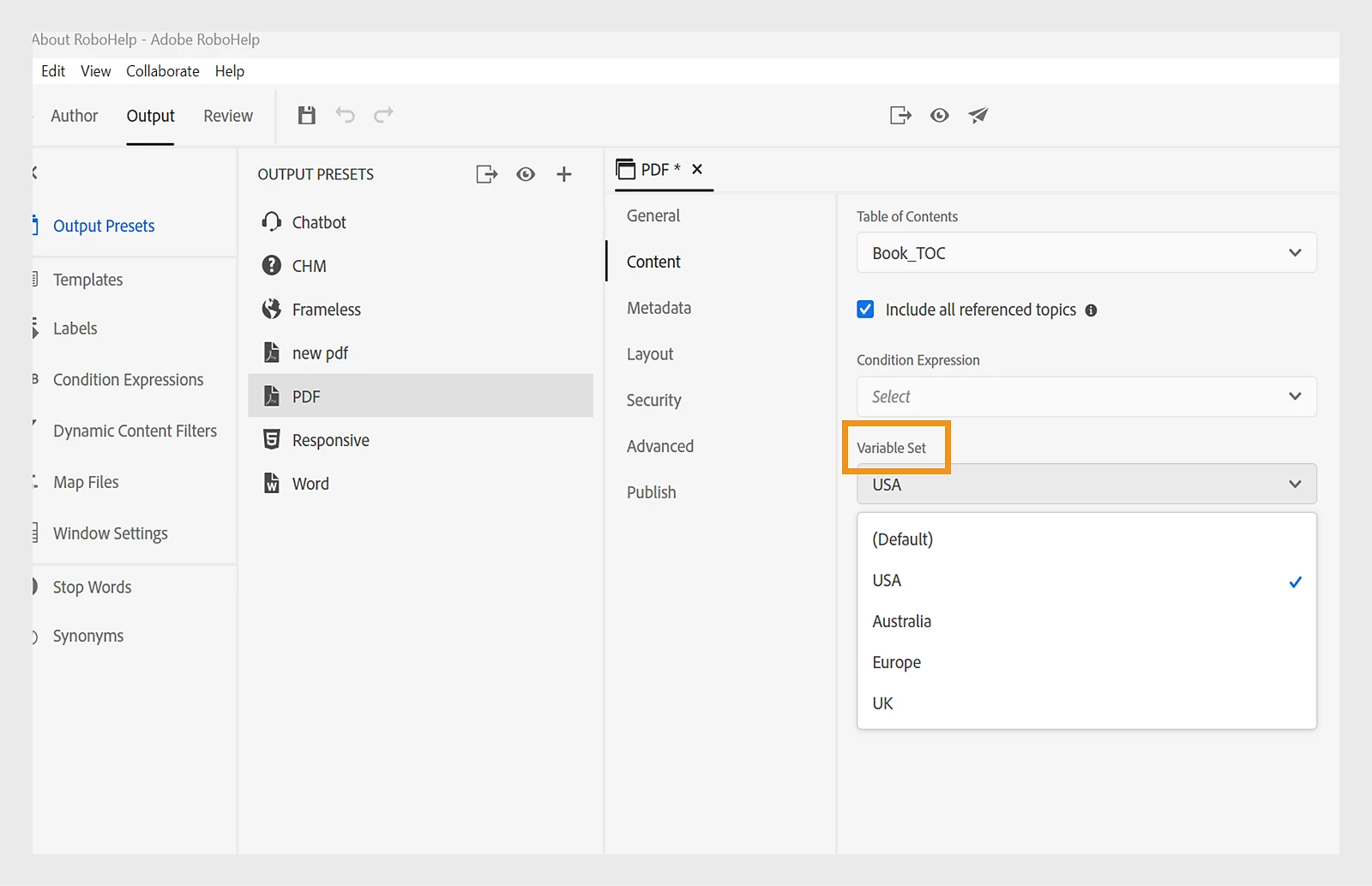
Depending on the Variable Set that you choose, you will get an output corresponding to the variable values defined in the Variable Set. For example, if you select the variable set USA, your output displays the Country name as 'USA', Country capital as 'Washington,D.C.'.
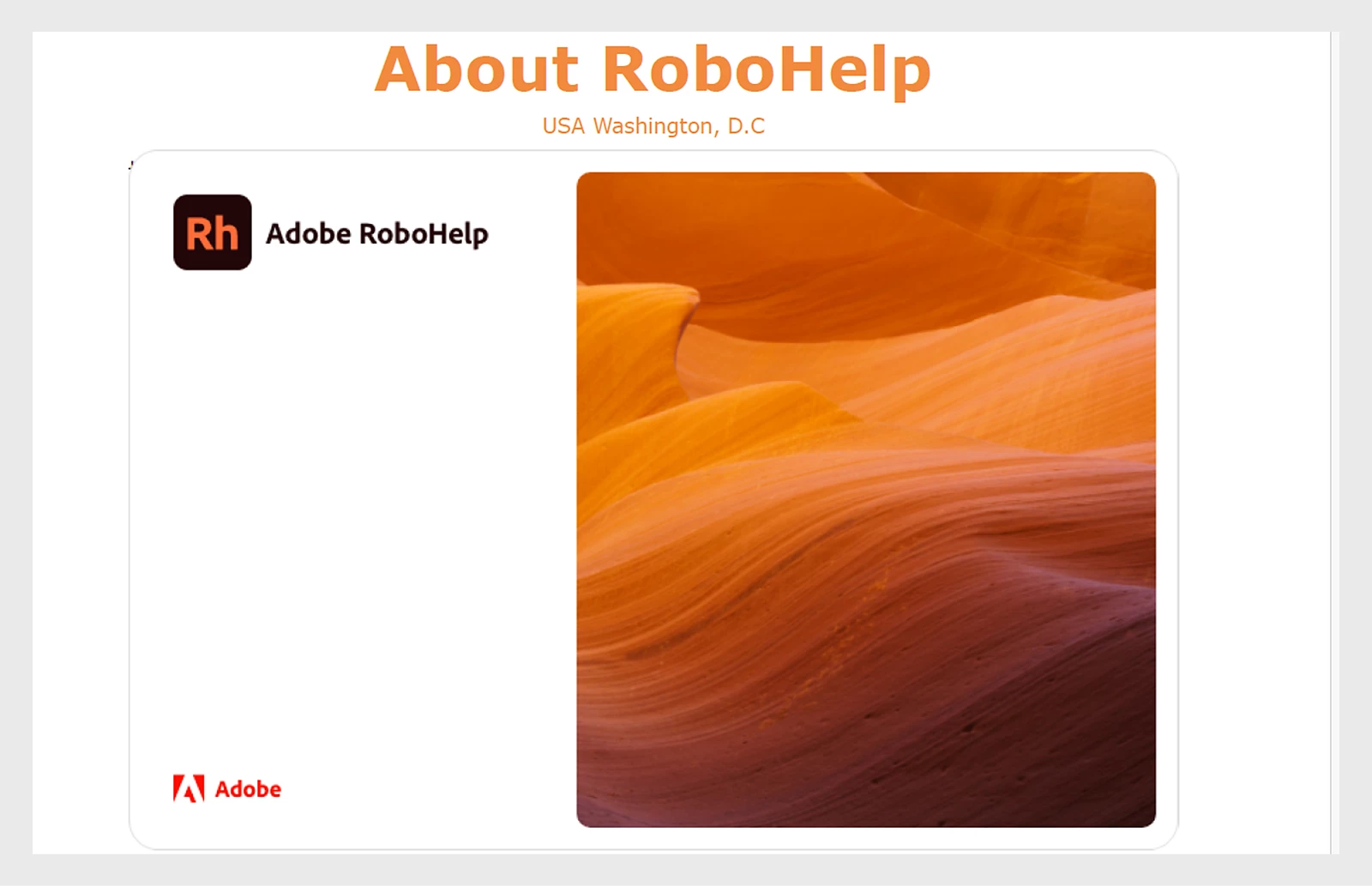
Similarly, if you select the variable set Australia, your output displays the Country name as 'Australia', Country capital as 'Canberra'.
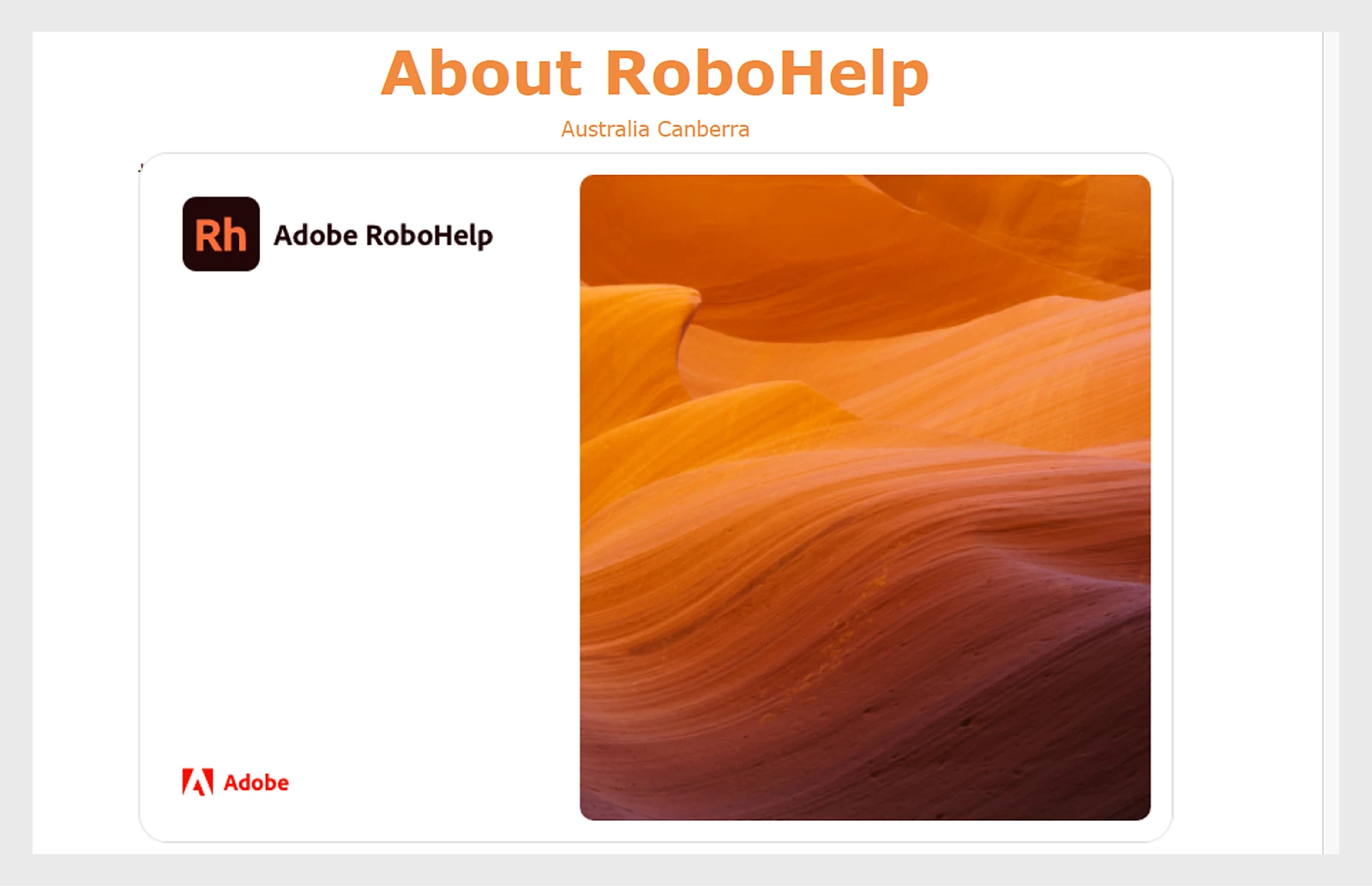
It means your output displays the variables’ values as defined in that particular set. You can quickly update the values for any variable set whenever required and regenerate the output. For example, if you need to update the details for a version, you can update the value of the version in the Current Version variable and regenerate the output.
Note:
You can also select (Default) from the dropdown to publish the default values for all variables.
We're glad. Tell us how this page helped.
We're sorry. Can you tell us what didn't work for you?
Share additional feedback to help us improve.
0/255
|