Whatever message this page gives is out now! Go check it out!


Work with topics and folders
Last update:
Nov 2, 2023
Learn how to work with topics to build your content in RoboHelp.
Note:
For the latest RoboHelp known issues and workarounds, refer to the RoboHelp: Known issues and workarounds article.
A 'Topic' is your project's basic element that contains content, such as text, images, multimedia, links, and more. You can add, edit, format, and delete content in a topic. A project can have multiple folders with multiple topics organized within a folder. This organization helps you create structured content in your project.
Create a folder
Folders store your topics. You can have multiple folders in a project.
You can create a folder at the root level in the Contents panel or a subfolder inside a folder.
To create a root-level folder in an open project:
- In the Author toolbar, click Contents. The Contents panel opens.
- In the Contents panel, click
 in the upper-right corner of the panel and then click New Folder.
- In the Folder Details dialog box, specify the folder name in Name.
- Click Create.The folder is created at the root level in the Contents panel.Note:To create a subfolder inside a folder, select the folder, click in the upper-right corner of the Contents panel, and then click New Folder. Or, right-click the folder or click
 against it, and choose New > New Folder.
Create a topic
You can create a topic inside a folder or at the root level in the Contents panel.
To create a topic in a folder:
- In the Author toolbar, select Contents. The Contents panel opens.
- In the Contents panel, do one of the following:
- Select the desired folder, then click in the upper-right corner of the panel, and click New Topic.
- Right-click the folder or click against it, and choose New > New Topic.
Note:If you don't select a folder, the topic is created at the root level in the Contents panel. - Select the desired folder, then click
- In the New Topic dialog box, specify the properties for the topic in different sections as required.The 'New Topic' and 'Topic Properties' dialog box have same sections, except for the 'File Info' section which is specific to the Topic Properties. For more information, see Topic properties.
- Click Create.The topic is created inside the selected folder in the Contents panel. You can create multiple topics inside a folder or a subfolder.
Add content to or edit a topic
Once you've created a topic, to add or edit content:
- In the Author toolbar, select Contents. The Contents panel opens.
- In the Contents panel, expand the folder that contains your topic, and double-click a topic to open it.Note:To quickly search for the topic you want to edit, click
 on the upper-left toolbar or press
Ctrl+F. In the search dialog box, type the topic title and filename. Double-click to open the relevant topic from the search results.You can open and work on several topics simultaneously. Each topic opens as a tab in the authoring workspace. - In an open topic, you can add or edit text, images, and multimedia content. You can also include expanding text, drop-down text, and create links within topics and to external content. It also allows you to insert and customize a Mini TOC, variables, snippets, and fields.See the following resources for more details:Note:To toggle the display of paragraph markers in a topic, choose View > Show > Paragraph Markers.
- To quickly run a spell check in an open topic, do the following:
- Choose Edit > Preferences or press
Ctrl+Shift+T. It opens the 'Application Preferences' dialog box. - Click Spell Check and select 'Run spell checking on opening a topic' checkbox.
- Click Done.
RoboHelp highlights the misspelled words in the topic. You can right-click on a misspelled word to perform following actions:- View the suggested spellings. You may click the appropriate suggested spelling to replace the misspelled word.
- Ignore the instance of misspelled word by clicking Ignore.
- Ignore all the instances of the misspelled word in the topic by clicking Ignore All.
- Add the word to the dictionary by clicking Add to Dictionary.
- Apply condition tags to the word by clicking Apply Condition Tags. In the left pane of the Apply Condition Tags dialog box, select the condition tags that you want to apply. The selected tags appear in the right pane. You can click
 against a tag to remove it from the right pane. Click Apply.
- Create a snippet by clicking Create Snippet. For more information, see Create a snippet.
- Locate the topic file in the Contents panel by clicking Locate in Contents panel.
- Open the Topic tab in the Properties panel by clicking Topic Properties.
- Choose Edit > Preferences or press
- To close a topic tab, click.Note:Save your work before closing a topic. When you click to close a tab, the Save Changes dialog box appears.In the Save Changes dialog box, do the following:
- If your project is connected to a version control system, click Check-in the file and specify a version label. Then, click Save & Check-In.
- If your project is local, click Save to save your work and close the tab.
The breadcrumb navigation bar at the top of the topic editor shows the element at the current cursor position and all its parent elements.
Besides the usual context menu options in the Author window, you can now invoke basic operations such as cut, copy, paste or remove. To perform any of these operations, you right-click on the element shown in the breadcrumb. You can also identify the structure of a breadcrumb trail through the listing of sibling and child text elements. To do a styling at the tag level, you can click the specific breadcrumb and apply styling from the Properties panel.
Import files and folders
You can import files and Word documents as topics in a project folder. You can also import folders and Adobe Captivate videos.
To import:
- In the Author toolbar, select Contents. The Contents panel opens.
- To import a file:
- Right-click a folder or click against it, and choose Import > File. It will show the 'Open' dialog box.
- Select the file that you want to import and click Open.
Note:The file type drop-down list in the Open dialog box displays the supported file types, for example, all files, topics, style sheets, and more. Use this drop-down list to filter files according to its type during file selection.The selected file is copied as a topic inside your project folder. - Right-click a folder or click
- To import a folder:
- Right-click a folder or click against it, and choose Import > Folder.
- In the Open dialog box, select the folder you want to import and click Select Folder.
The selected folder and its files are copied inside your project folder. - Right-click a folder or click
- To import the HTML version of a Word document, see Import Word documents into a project.
- To import an Adobe Captivate video, see Import and insert an Adobe Captivate video.
Link files and folders
You can link files and folders from your system to your project folder.
To link:
- In the Author toolbar, select Contents. The Contents panel opens.
- To link a file:
- Right-click a folder or click against it, and choose Link > Link File. It will open the 'Open' dialog box.
- Select the file you want to link and click Open.
The file is copied inside the selected folder. RoboHelp notifies that the copied/project file is linked to the original/source file. A green arrow precedes the project file in the Contents panel, indicating in-sync status.Note:For all non-topic files (.docx, .xlsx, .pdf), you can right-click on the file and access the properties to see its general information and the reference data.Note:When you modify a project or its source version, the preceding arrow color changes from green to red to indicate its 'out-of-sync' status. To sync the linked files:- From source to project: Right-click the topic or click against it, and click Sync > From Source to Project.
- From project to source: Right-click the topic or click against it, and click Sync > From Project to Source.
A sync success or failure notification appears.To remove the link between the project and source versions, right-click the topic or click against it, and click Remove Link. This action will also remove the arrow preceding the project file in the Contents panel. - Right-click a folder or click
- To link a folder:
- Right-click a folder or click against it, and choose Link > Link Folder. It will open a dialog box.
- Select the folder you want to import and click Select Folder.
The selected folder and its files are copied inside your project folder. - Right-click a folder or click
- To import the HTML version of a Word document, see Import Word documents into a project.
- To import the HTML version of a FrameMaker document, see Import FrameMaker documents into a project.
- To import an Adobe Captivate video, see Import and insert an Adobe Captivate video.
Create HTML topics
Note:
Applicable only for Word and FrameMaker files.
To create HTML topics:
- In the Author toolbar, select Contents. The Contents panel opens.
- To create HTML topics from a Word or a FrameMaker file, right-click the file or click against it, and click Update HTML. RoboHelp creates a folder with the same name as the Word or FrameMaker file and places all HTML topics and referenced assets inside the new folder.Note:To create HTML topics, RoboHelp considers the settings specified in the following fields in the Project Settings dialog box (General tab):
- For Word documents: Default Word Import Settings
- For FrameMaker documents: Default FrameMaker Import Settings
If a folder has multiple files, use the following options to simultaneously create HTML topics from all files:- For Word files, right-click the folder and choose Word Documents > Update All.
- For FrameMaker files, right-click the folder and choose FrameMaker Documents > Update All.
Rename a topic or a folder
You can rename a topic or a folder in your project without having to open it.
To rename:
- In the Author toolbar, select Contents. The Contents panel opens.
- To rename a folder, right-click it or click against it, and click Rename. To rename a topic's filename, first expand the folder that contains the topic you want to rename. Then, right-click the topic or click against it, and click Rename.
- In the Rename dialog box, specify the new name, and click Done.Note:To view the new filename of the topic you renamed, choose View > Show and deselect Topics by Title. From the default title view, RoboHelp switches to the filename view and displays all topics by filename.
Create a duplicate topic
To create a duplicate topic in the same folder:
- In the Author toolbar, select Contents. The Contents panel opens.
- To create a duplicate topic, first expand the folder that contains the topic you want to duplicate. Then, right-click the topic or click against it, and click Duplicate.
- In the Duplicate dialog box, specify a title and filename for the duplicate topic, and click Done. The duplicate topic created in the same folder as the original topic.
Delete a topic or a folder
To delete a topic or a folder in your open project:
- In the Author toolbar, select Contents. The Contents panel opens.
- To delete a folder, right-click it or click against it, and click Delete.To delete a topic, first expand the folder that contains the topic you want to delete. Then, right-click the topic or click against it, and click Delete.
- Click Yes in the Confirm dialog box. The topic or the folder is deleted.
Save a Topic as PDF
To save an individual topic as PDF:
- In the Author toolbar, select Contents. It will open the Contents panel.
- Hover over the topic you want to save as PDF and right-click or click against it to open the context menu. Alternatively, you can open the context menu by right clicking anwhere in the topic editor or by clicking File from the menu bar.
- Click Save As PDF. It will open a 'Save As' dialog box.
- Select an appropriate folder, provide a filename, and click Save. The topic will be saved as PDF in the selected folder.
Collapse all folders in the project
To collapse all expanded folders in your project:
- In the Author toolbar, select Contents. The Contents panel opens.
- Right-click or click against any expanded folder or any topic inside an expanded folder, and click Collapse All.All expanded folders in your project collapse.
Locate a topic in a TOC
To locate a topic in a TOC:
- In the Author toolbar, select Contents. The Contents panel opens.
- Right-click or click against a topic and hover over Locate in TOC.RoboHelp displays the TOCs to which the topic belongs. Click the TOC in which you want to locate the topic.The Table of Contents panel displays the TOC in expanded view in which, the topic is highlighted.Note:If a topic is not included in any TOC, the Locate in TOC option is not visible.
Show topics or folders in Windows Explorer
To show the location of specific topics or folders in Windows Explorer:
- In the Author toolbar, select Contents. The Contents panel opens.
- Right-click or click against a folder or a topic inside an expanded folder, and click Show in Explorer (Mac: Reveal in Finder)The location of the folder or the topic is displayed.
Search for topics
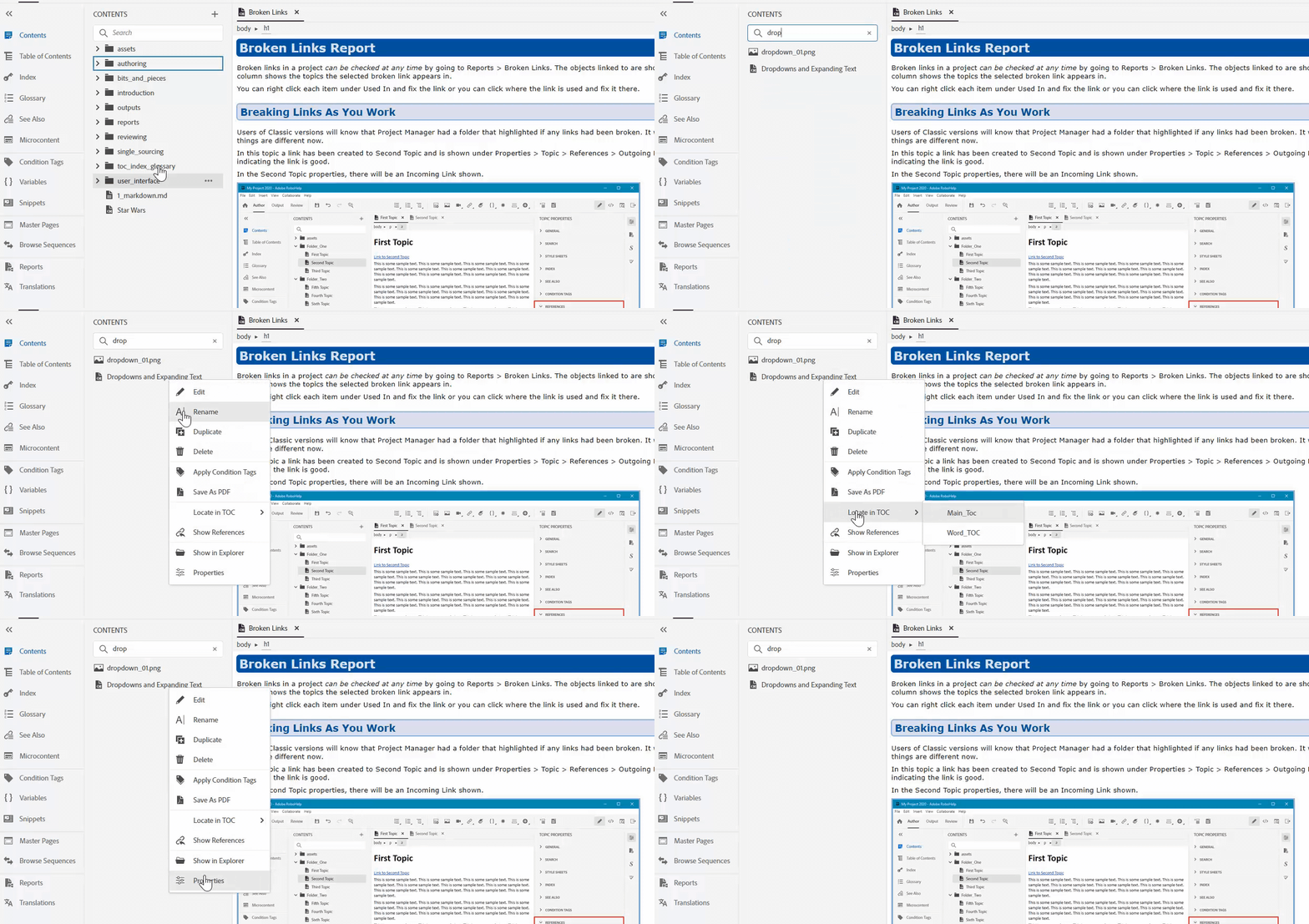
In the Contents panel, you can search for the topics and any asset files in the project. It will search in the file names and the topic titles.
The gif below demonstrates the search and preview workflow.
Set topic properties
For information about setting topic properties, see Set topic properties.
You can open and work on several topics simultaneously. Each topic opens as a tab in the authoring workspace. You can right-click a topic tab to use the following options:
Close Closes the current file.
Close Others Closes all open files except for the current file.
Close All Closes all open files.
When you close multiple open files, RoboHelp prompts you to save your changes. In the Save Changes dialog box, you can save a specific file or all files. By default, all open files are selected for saving; you may deselect a file that you don't want to save. Click Save.
Locate in Contents panel Opens the Contents panel if it's not open already, and highlights the topic.
More like this
We're glad. Tell us how this page helped.
We're sorry. Can you tell us what didn't work for you?
Share additional feedback to help us improve.
0/255
|